

Delete your airline
1
Start
In Settings → Transfer or delete, click Delete airline…. If any pilot is flying right now, the button waits until nobody is.
2
Confirm the name
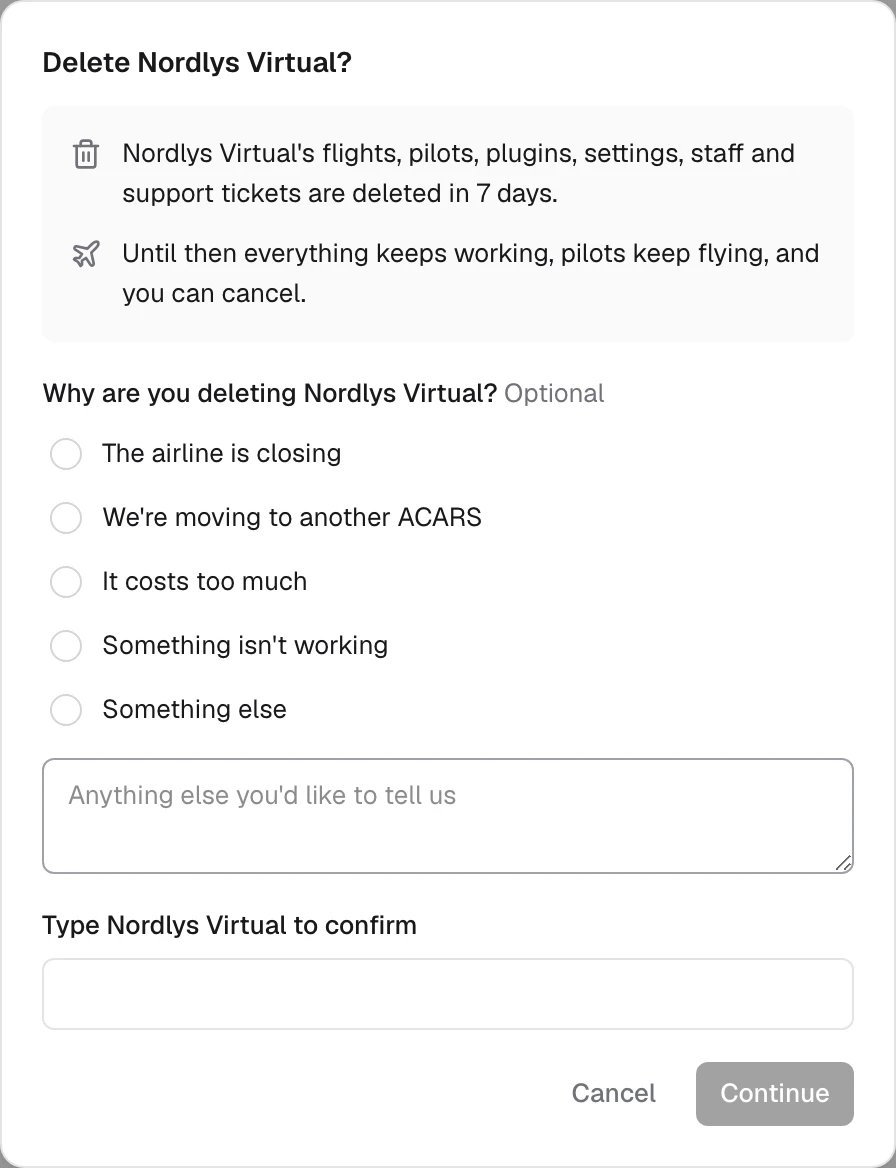
The dialog says what happens and when. Optionally tell us why, then type the airline’s name exactly and click Continue.
3
Enter the code
We email you a 6-digit code. Enter it and click Continue.
4
Schedule it
Read the last step and click the delete button once its short countdown ends.
When it’s deleted
Deleting is scheduled, not immediate:- On a paid plan whose subscription covers only this airline, it’s deleted at the end of the period you’ve paid for. The subscription stops renewing, so you aren’t charged again.
- Otherwise (Free, or a subscription that also covers your other airlines), it’s deleted in 7 days.
Cancel a deletion
Click Cancel deletion on the same tab any time before the date. Nothing changes. After the date, only Skyvex Software support can restore the airline, so contact us quickly if it was a mistake.Transfer ownership
1
Pick the new owner
Click Transfer… and choose the New owner. It must be someone on your staff; suspended people and pending invitations can’t be picked.
2
Enter the code
We email you a 6-digit code. Enter it and click Continue.
3
Send it
The last step lists what will happen. Click the transfer button once its countdown ends.
What the new owner sees
We email the new owner a link to an Ownership transfer page. It shows who sent it, when it expires, and what changes:- They become the owner, with billing, staff, and transferring or deleting the airline.
- Pilots, flights, plugins and settings stay exactly as they are.
- They choose the role you’ll have afterwards. The field is labelled with your name: Admin to start with, another role, or Remove from staff. They can change it later in Staff.
Your subscription
Your subscription doesn’t move with the airline. On Pro or Pro+, it stays with you and stops renewing when they accept. The airline keeps its plan until the end of the period you’ve paid for, then moves to Free unless the new owner subscribes. If they subscribe before then, their plan starts when yours ends, so there’s no gap and nobody pays twice.About the email code
About the email code
The code is 6 digits and works for 10 minutes. You can ask for a new one after a minute. After 5 wrong tries, ask for a new code.