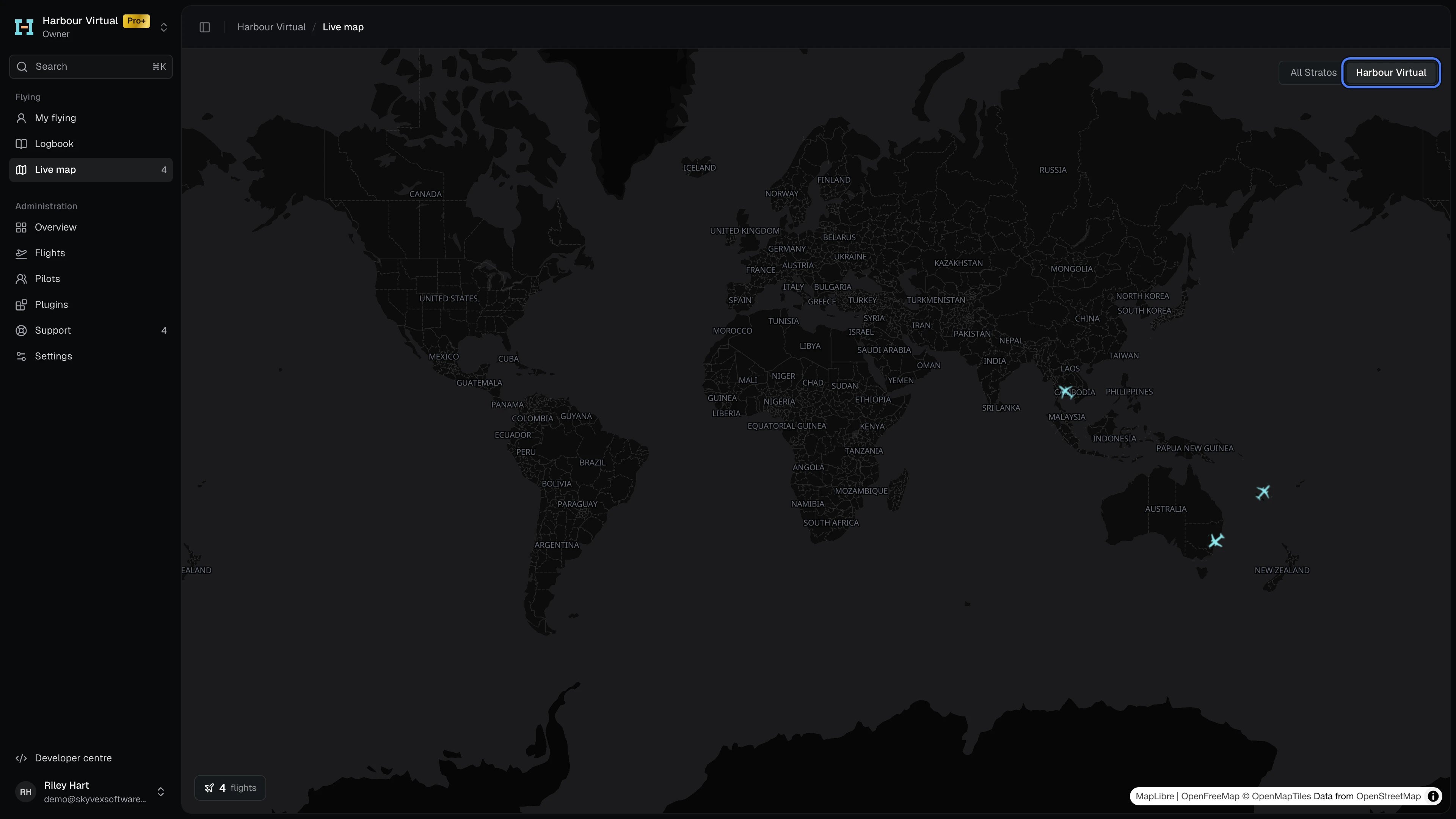
The live map shows every aircraft flying with Stratos right now, across every airline. Switch it to your airline to see only your own pilots. Each airline’s aircraft are drawn in its own plane colours, which you set in Settings → Colours.

Open the live map

Click Live map in the sidebar, under Flying. The number beside it is how many of your airline’s aircraft are flying now. Everyone signed in to Console has Live map in their sidebar, not just owners and staff.

Show only your airline

Use the switch at the top right of the map:
  • All Stratos shows every flight on the Stratos network. This is where it starts.
  • Your airline’s name shows only your airline’s flights.
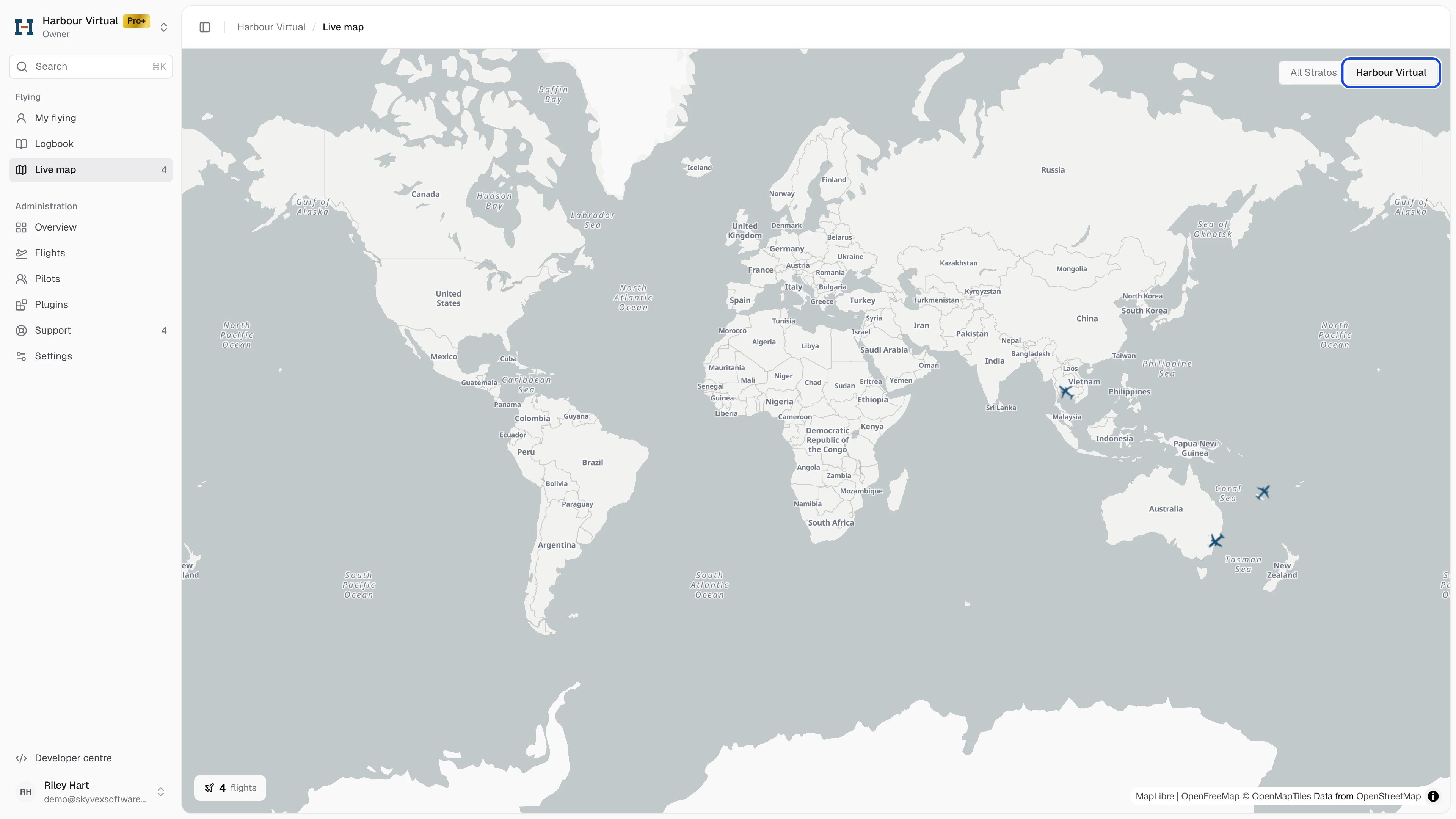
The live map showing only Harbour Virtual's flights, with the switch between All Stratos and Harbour VirtualThe live map showing only Harbour Virtual's flights, with the switch between All Stratos and Harbour Virtual
Your choice is kept in the page address, so a bookmark or a shared link opens the same view.

Read the map

  • Hover over an aircraft to see its airline, aircraft type, callsign, pilot, route, phase (Preflight or In Flight), altitude and speed.
  • The count at the bottom left is how many flights the map is showing.
  • Positions refresh on their own while the page is open.
  • An aircraft drops off the map when Stratos hasn’t heard from it for 15 minutes, for example after the simulator closes mid-flight.
The map on your Overview is the same map showing only your airline, framed on your aircraft when it opens.

Choose your plane colours

Your aircraft use your primary colours unless you pick plane colours of your own.
  1. Open Settings, then the Colours tab.
  2. Under Aircraft on the live map, set Light map and Dark map. The previews beside them show an aircraft on each map.
  3. The change saves as you go.
Settings, Colours tab: Aircraft on the live map, with a colour for the light map and one for the dark map, and a preview of eachSettings, Colours tab: Aircraft on the live map, with a colour for the light map and one for the dark map, and a preview of each
Pick colours that stand out against the map: a pale primary colour can be hard to see on the light map, and a dark one on the dark map. Your plane colours show on the live map, your Overview, and the public live map on skyvexsoftware.com.