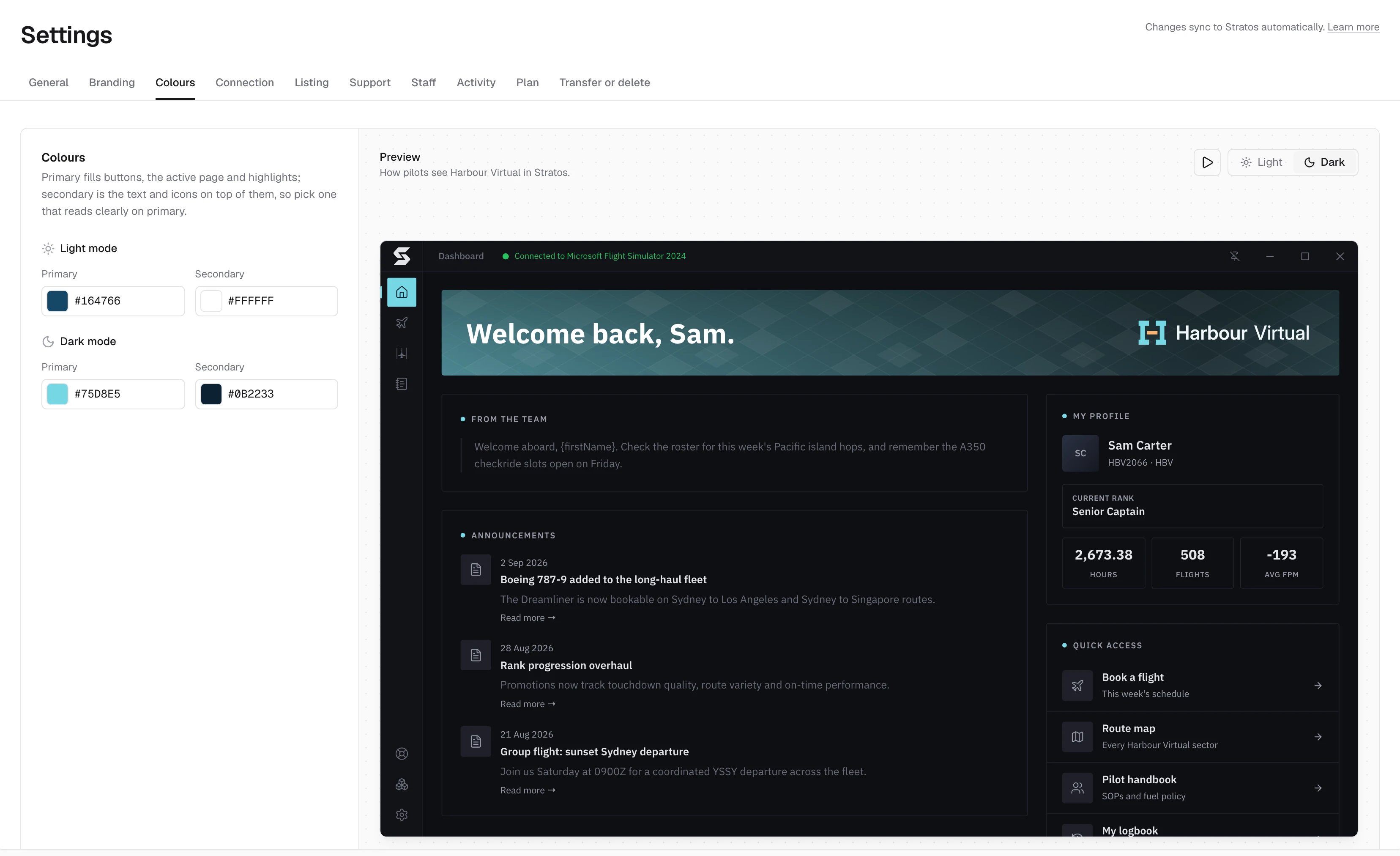
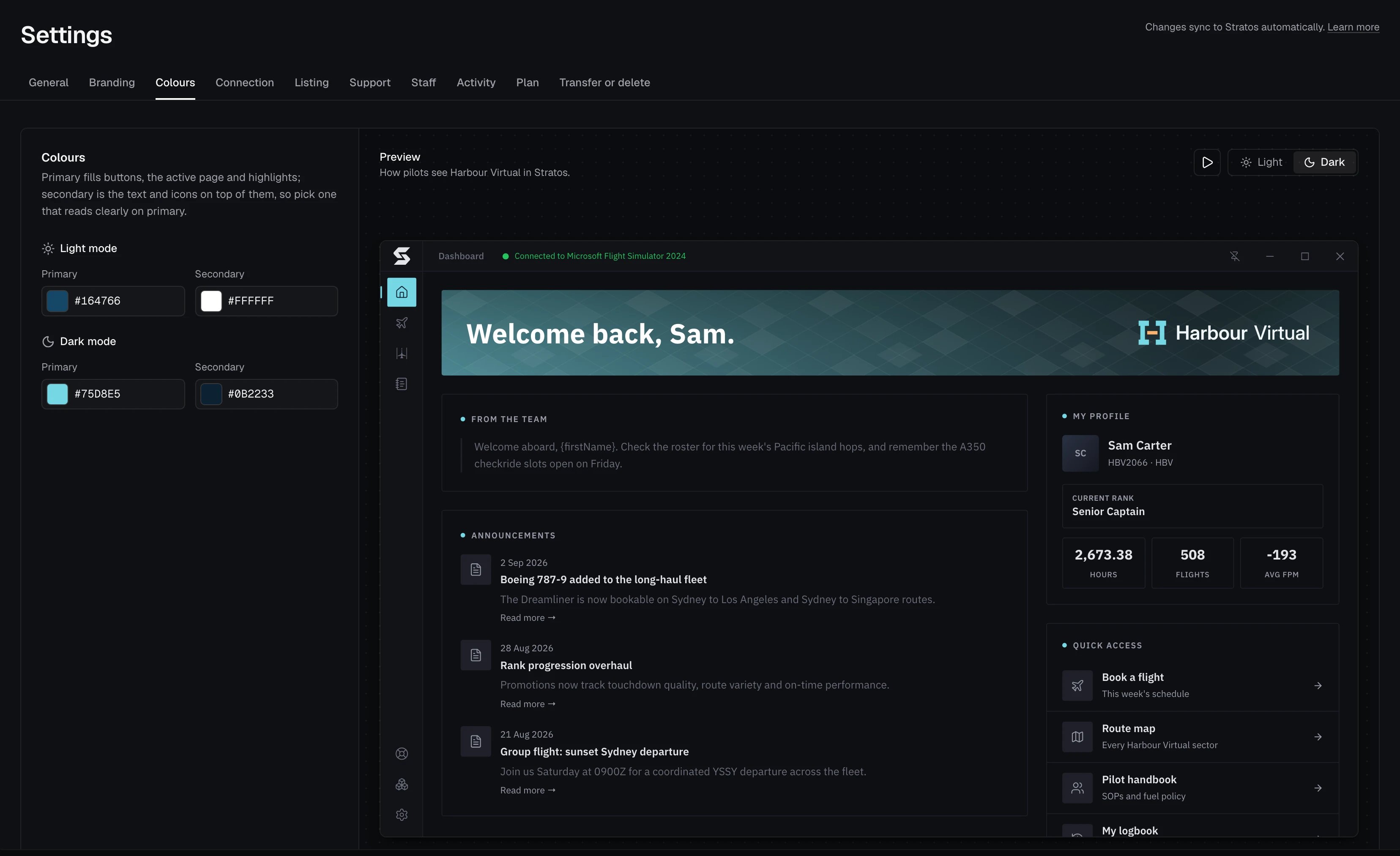
Settings → Colours sets the colours Stratos uses for your airline, in light and dark mode, and the colour of your aircraft on the live map. A preview beside them shows how pilots see your airline in Stratos.
Settings, Colours tab, with the light and dark colours beside a live Stratos previewSettings, Colours tab, with the light and dark colours beside a live Stratos preview

Set your colours

Under Light mode and Dark mode, set two colours each:
  • Primary fills buttons, the active page and highlights.
  • Secondary is the text and icons on top of them, so pick one that reads clearly on primary.
Changes save a moment after you stop editing, and pilots see the new look in Stratos shortly after. The Preview tours Stratos on its own. Light and Dark switch its theme, the pause button stops the tour, and clicking the preview pauses it while you look.

Aircraft on the live map

Light map and Dark map set your aircraft’s colour on the live map in each theme. Leave them as your primary colours, or pick something that stands out on the map. See Live map.