At a glance
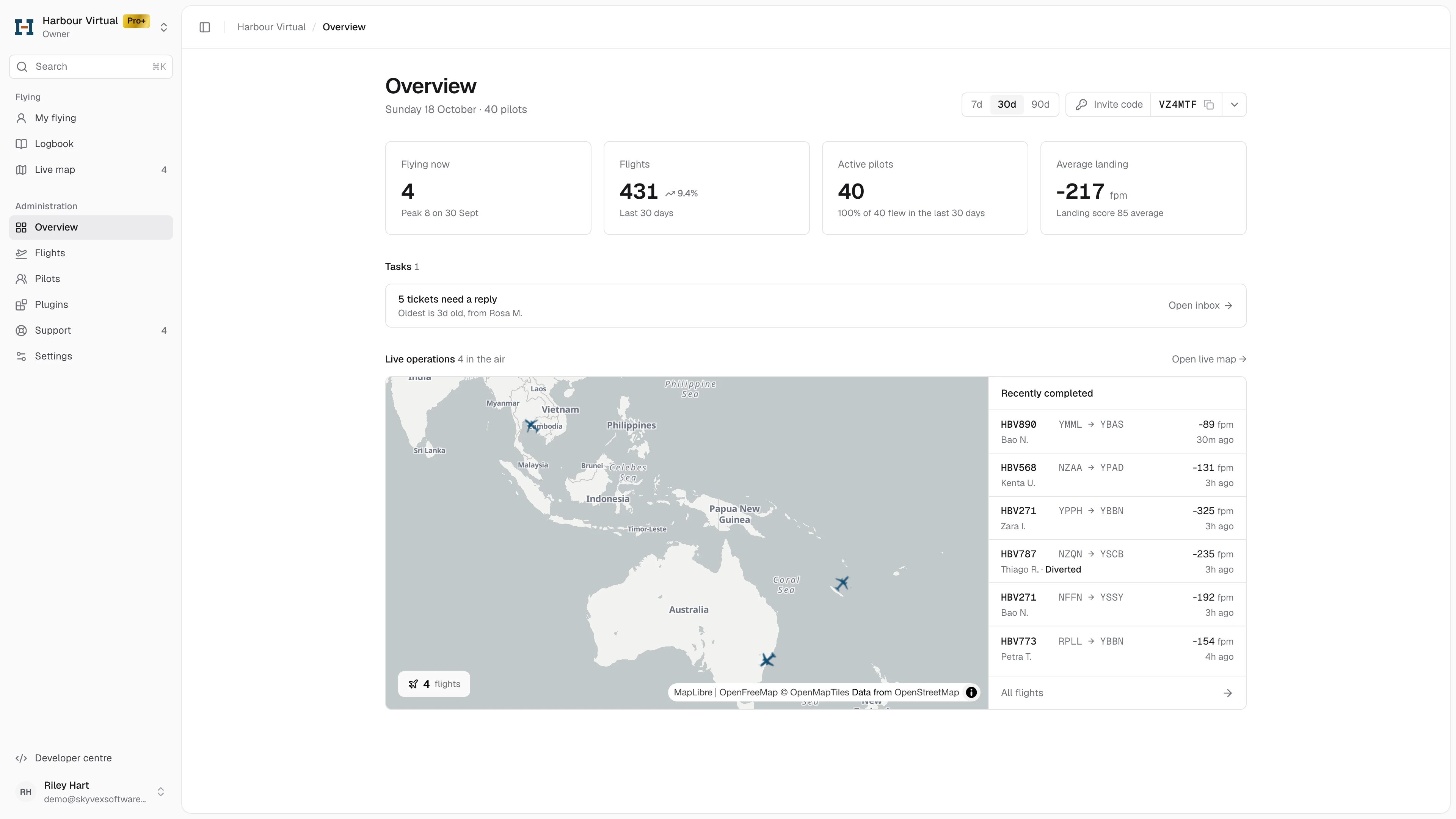
- Pick 7d, 30d or 90d at the top right to change the period for the Flights, Active pilots and Average landing cards.
- Tasks lists unanswered support tickets first, then anything left to set up.
- Live operations shows your aircraft in the air and your last six finished flights.
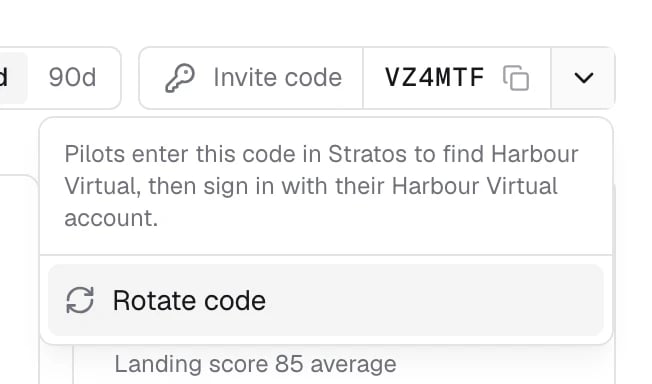
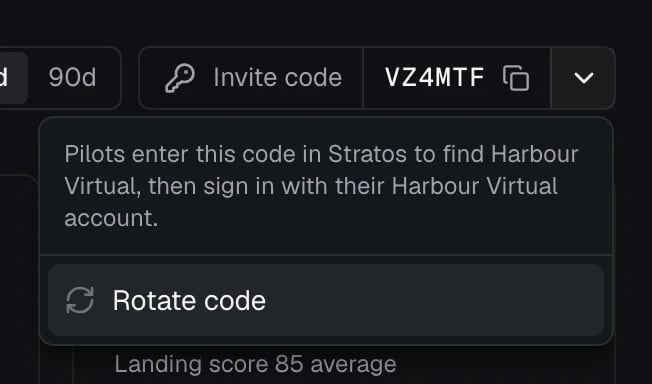
- Click the invite code to copy it. Rotate code stops the old one working straight away.
Change the period
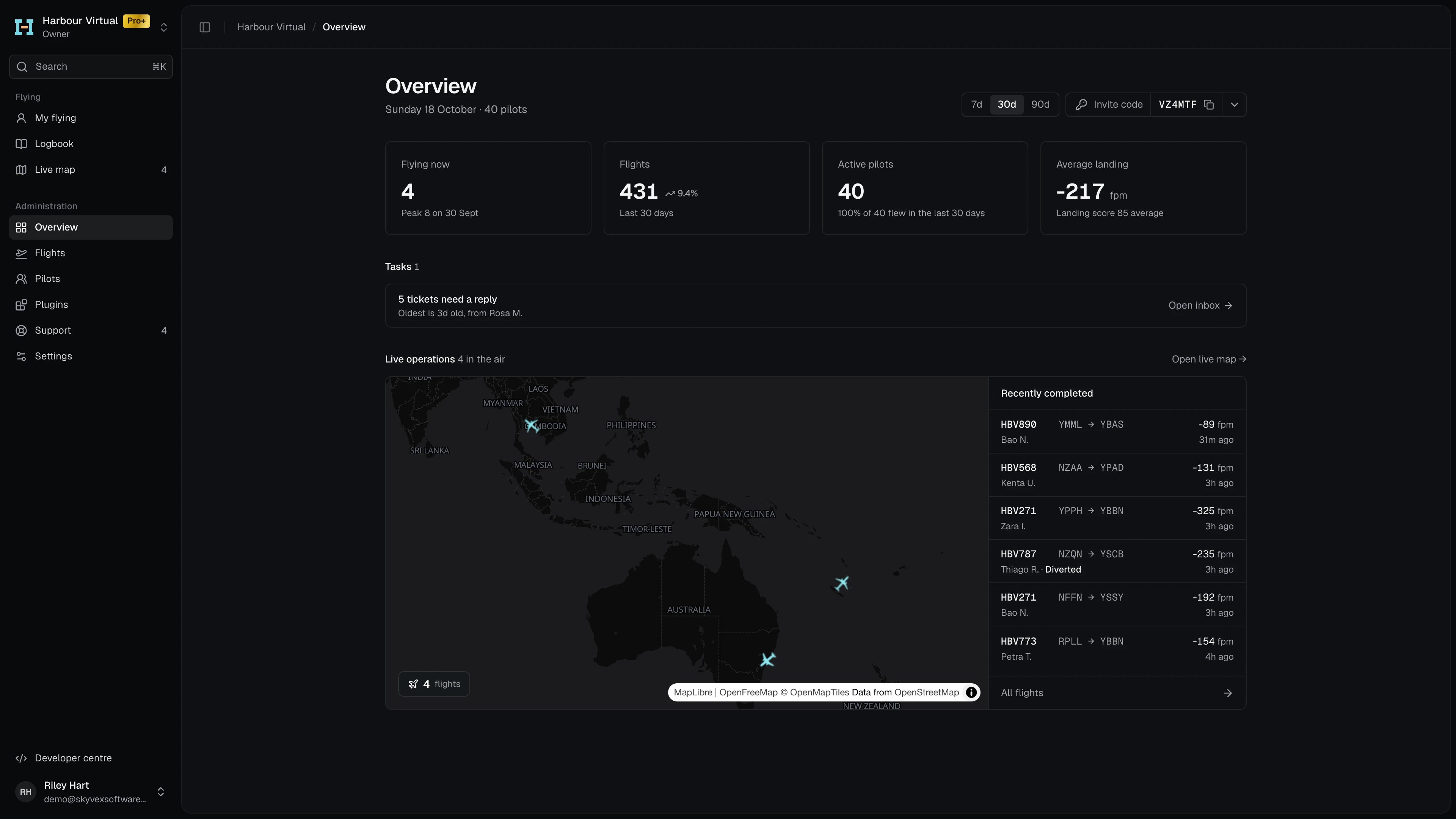
The 7d, 30d and 90d switch at the top right sets how far back the stat cards look. It starts on 30d. The date and your total number of pilots sit under the page title.Read the key numbers
Flying now doesn’t follow the period switch: it is always live.
Work through your tasks
Tasks is the list of things waiting on you, with a link to each. The number beside the heading is how many there are.- Tickets that need a reply come first (“5 tickets need a reply”), with how old the oldest one is and who it’s from. Open inbox takes you to Support.
- Set-up steps you haven’t finished come next, each with Set up.
- Suggestions come last, such as Upload a dark mode logo, Add your website, Add a map plane colour and Turn on new ticket emails. Each one disappears once it’s done.
Watch live operations
Live operations shows how many of your aircraft are in the air, a map of them, and Recently completed beside it.- The map opens framed on the aircraft that are flying when the page loads. After that it stays where you leave it, even as they move. With nobody flying, it opens on the whole world.
- Aircraft use your plane colours from Settings → Colours. See Live map.
- Open live map takes you to the full Live map.
- Recently completed lists your last six finished flights, newest first: callsign, route, touchdown rate, pilot and how long ago. A diverted flight is marked Diverted. All flights opens Flights.
The map only shows on wider screens. On a phone or a narrow window you’ll see Recently completed on its own.
Share or rotate the invite code
Pilots enter your invite code in Stratos to find your airline, then sign in with their account at your VA. Only the owner sees the code.- Copy it: click the code. The copy icon turns into a tick.
- Rotate it: open the menu beside the code, choose Rotate code, then Rotate. The current code stops working straight away, so anyone you’ve already given it to needs the new one.
The Free plan card
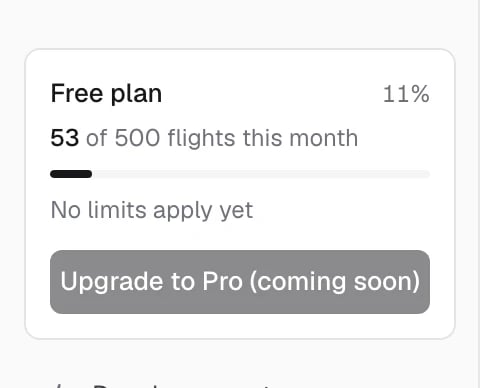
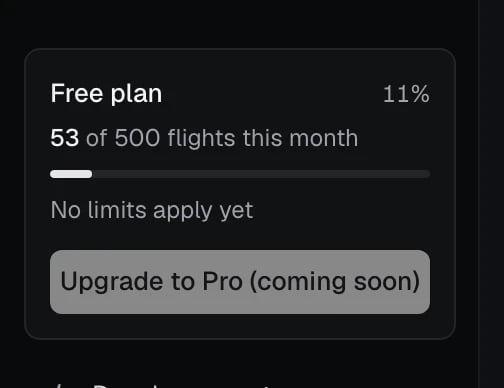
On the Free plan, the owner sees a plan card at the bottom of the sidebar. It shows this month’s flights against your allowance (“48 of 500 flights this month”), the share used, and when the count resets. While billing isn’t switched on it says No limits apply yet; once new flights are paused it says New flights paused until the reset date. Founding owners see Founding Free plan. Upgrade to Pro starts the upgrade.