

At a glance
- Settings → Staff has two cards: People and Roles.
- Four preset roles: Owner, Admin, Support and Viewer.
- Staff come with Pro (up to 5) and Pro+ (no limit). Custom roles come with Pro+.
- Suspending someone removes their access straight away and keeps their history.
Invite someone
1
Open the invite
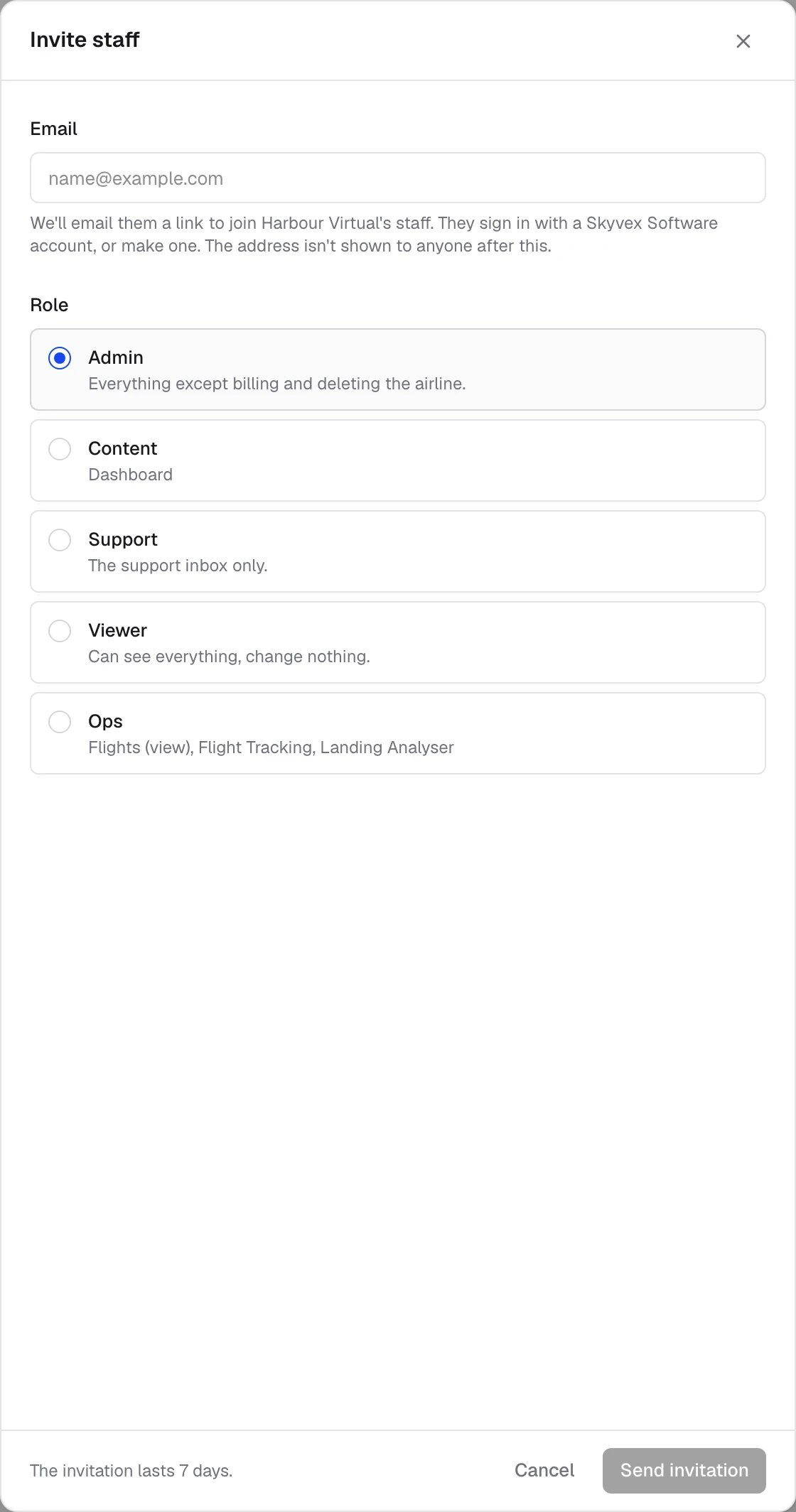
In Settings → Staff, click Invite on the People card.
2
Enter their email
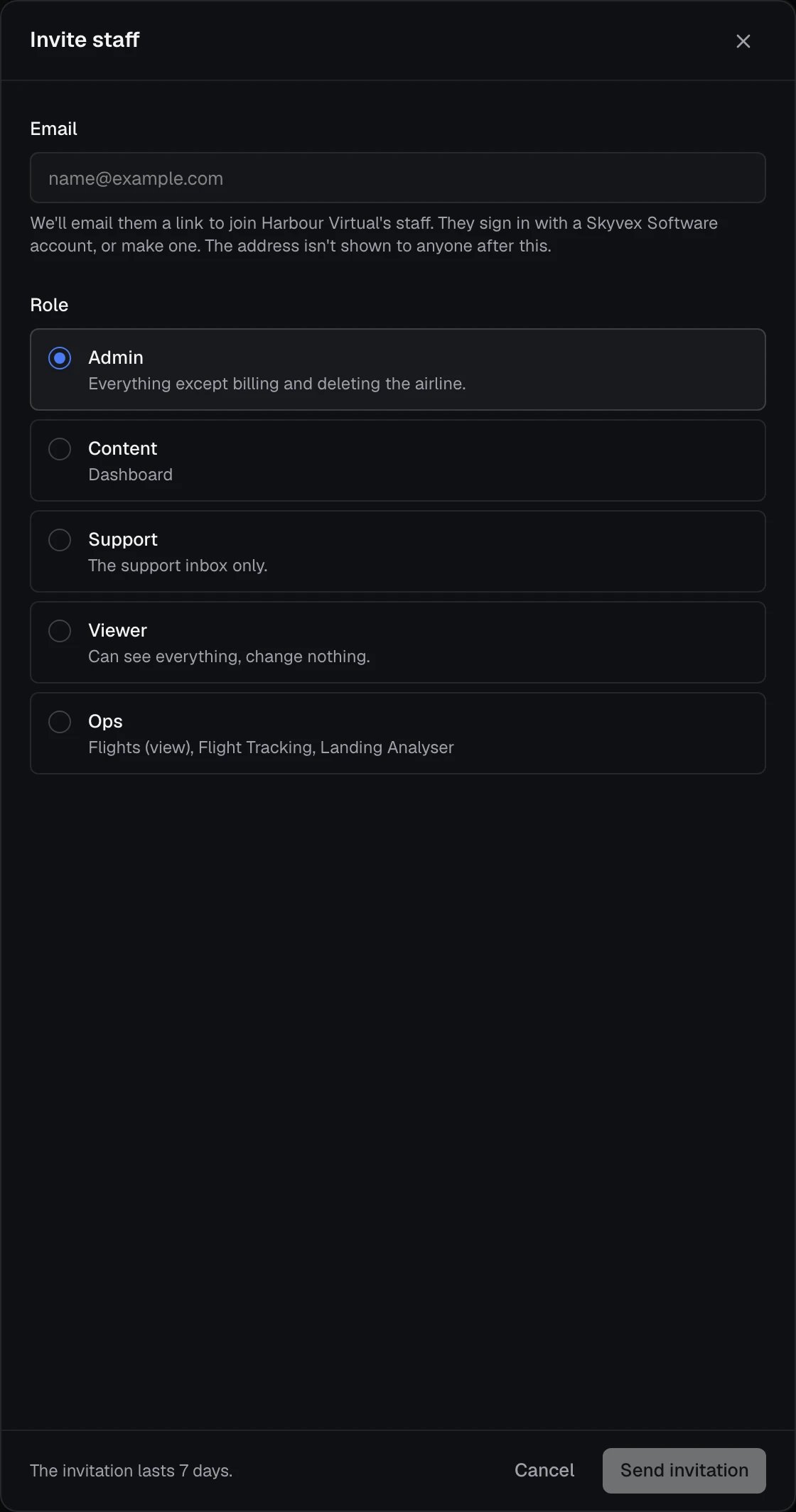
We email them a link to join your airline’s staff. They sign in with a Skyvex Software account, or make one. The address isn’t shown to anyone after this.
3
Pick a role
Choose the role they start with, then click Send invitation.
Change someone’s role
Each person in People has a Role menu. Pick another role and it applies straight away. The owner’s role can’t be changed here; to hand over the airline, see Transfer or delete.Preset roles
Make a custom role
On Pro+, New role on the Roles card makes a role of your own, like a Content role that only edits the Dashboard.1
Name it
Give the role a name, for example “Content” or “Ops”.
2
Set its areas
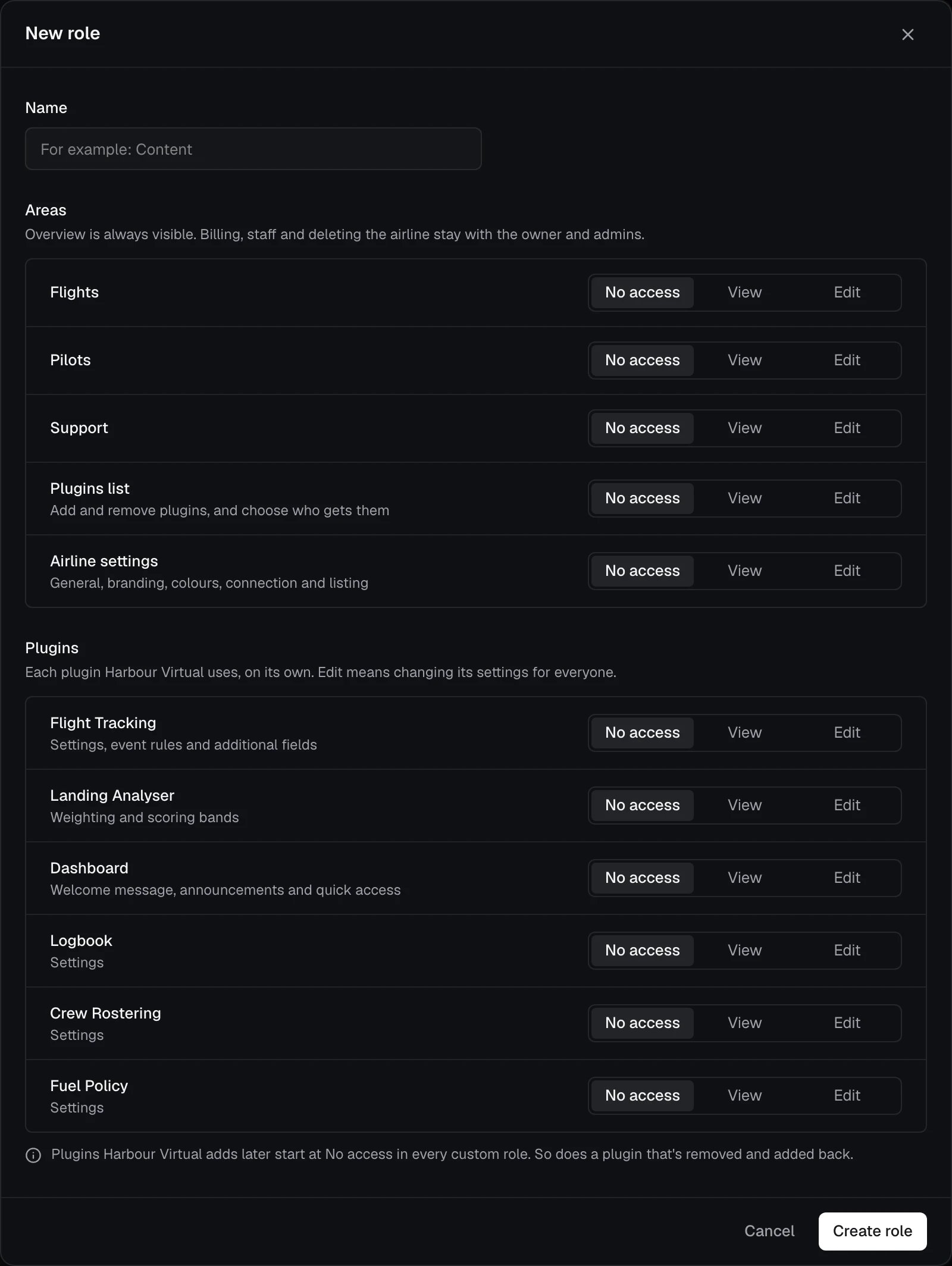
For Flights, Pilots, Support, Plugins list and Airline settings, choose No access, View or Edit. Plugins list covers adding and removing plugins and choosing who gets them. Airline settings covers General, Branding, Colours, Connection and Listing.
3
Set its plugins
Each plugin your airline uses gets its own No access, View or Edit. Edit means changing its settings for everyone, such as Flight Tracking’s settings, event rules and additional fields.
4
Create it
Click Create role. It’s now in the Role menus and the invite.
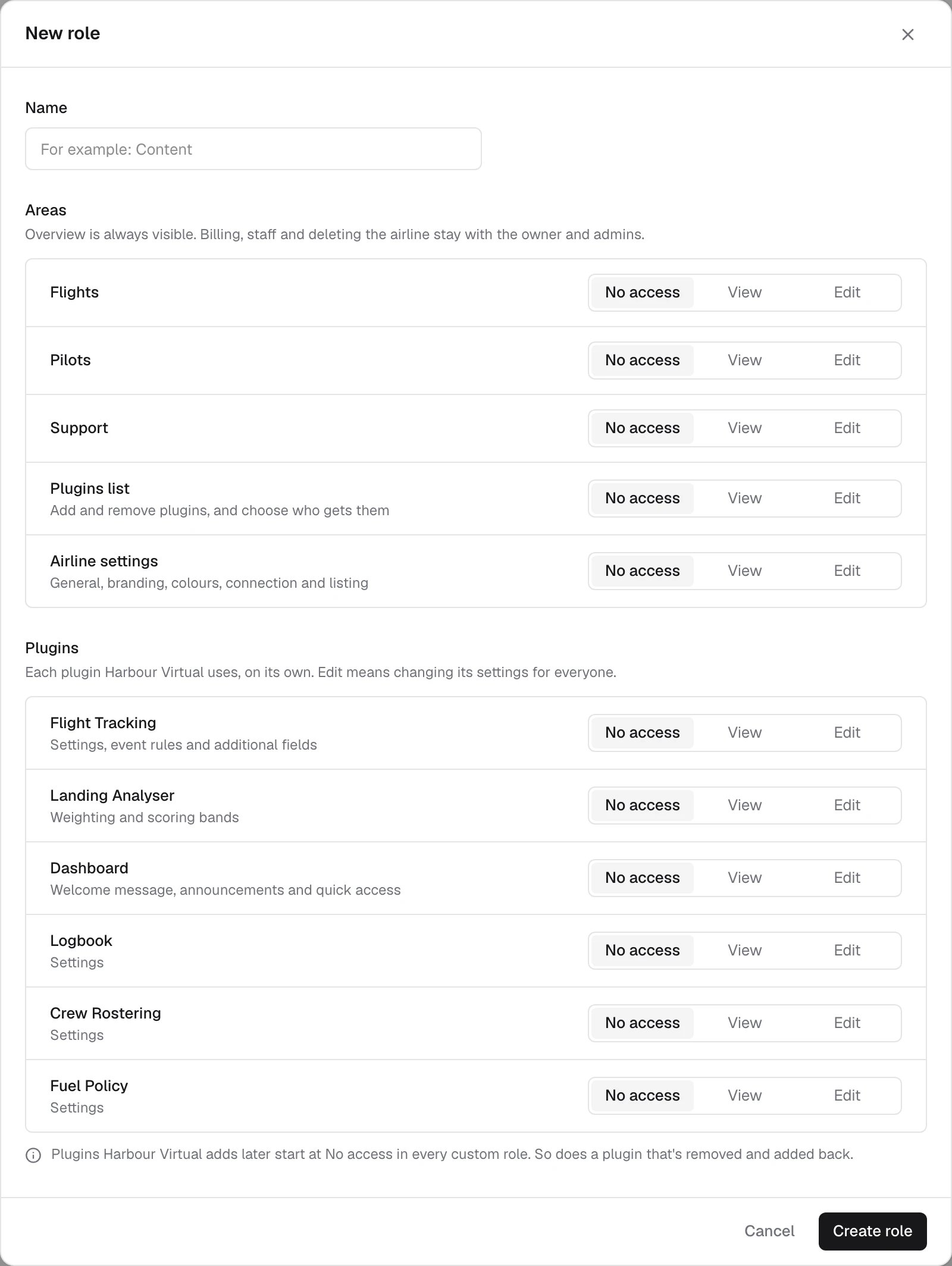
A plugin you add later starts at No access in every custom role. So does a plugin that’s removed and added back. Check your custom roles after adding a plugin.
Suspend or restore someone
Use Suspend on a person’s row. They lose access to your airline in Console straight away. They stay in People as suspended and don’t count towards your staff. Their Skyvex Software account isn’t deleted, and their activity history and support replies stay as they are. Suspended people are hidden until you turn on Show suspended. To bring someone back, use Restore access on their row and choose their role (their previous role is marked). We email them to let them know.Plan limits
Pending invitations count towards the limit of 5; suspended people don’t. When Pro is full, Invite and Restore access are switched off until you suspend someone, withdraw an invitation or move to Pro+.
Related
- Activity, which logs changes to staff and roles
- Transfer or delete
- Plans and billing