

At a glance
- Your airline decides how you sign in: a username and password, or Sign in with your airline in the browser.
- After signing in, Stratos installs your airline’s plugins and opens the first one.
- Stratos may ask you to accept its licence. It never interrupts a flight to do so.
- If your airline asks pilots to sign in again, or your session runs out, Stratos asks you to sign in once more.
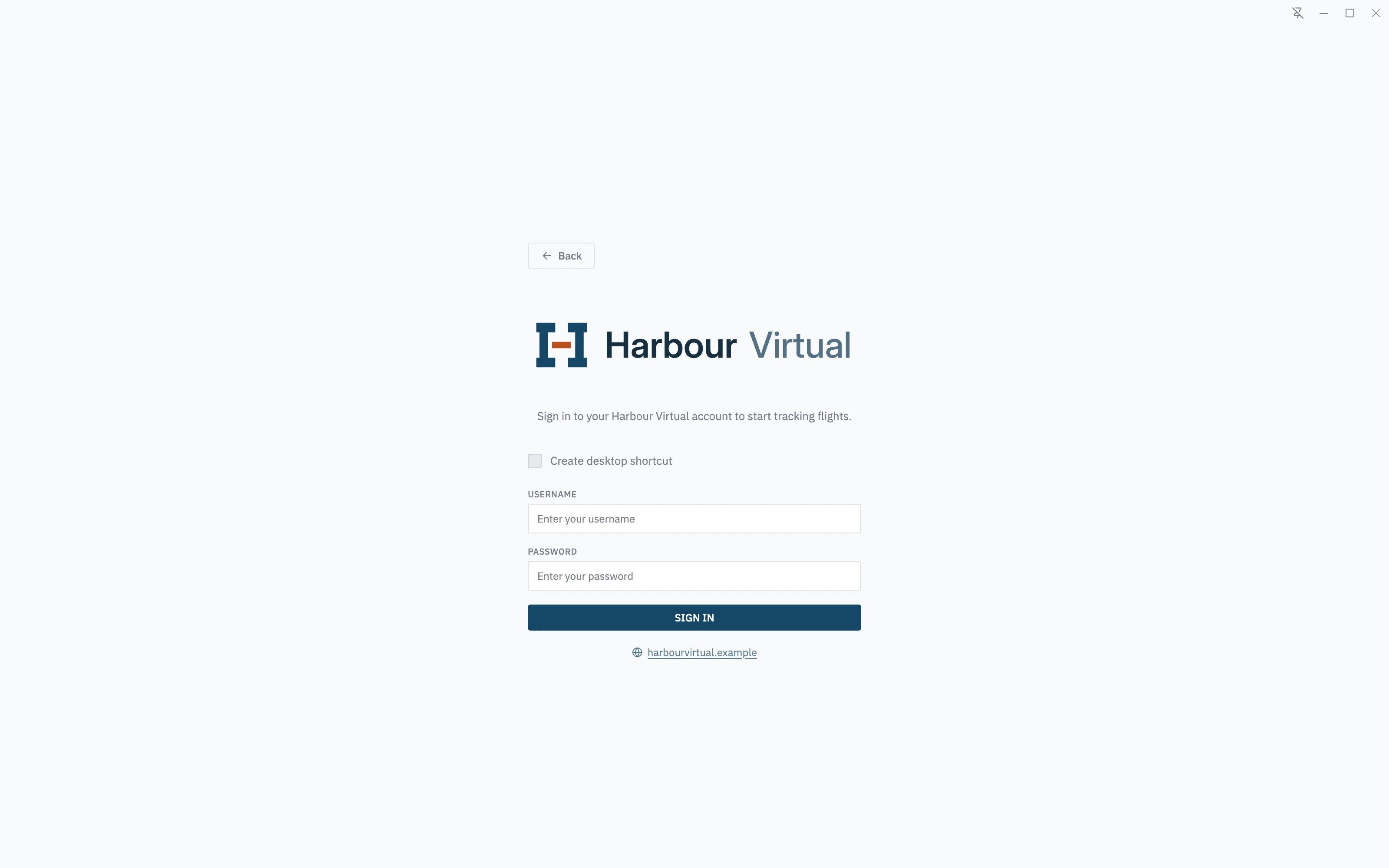
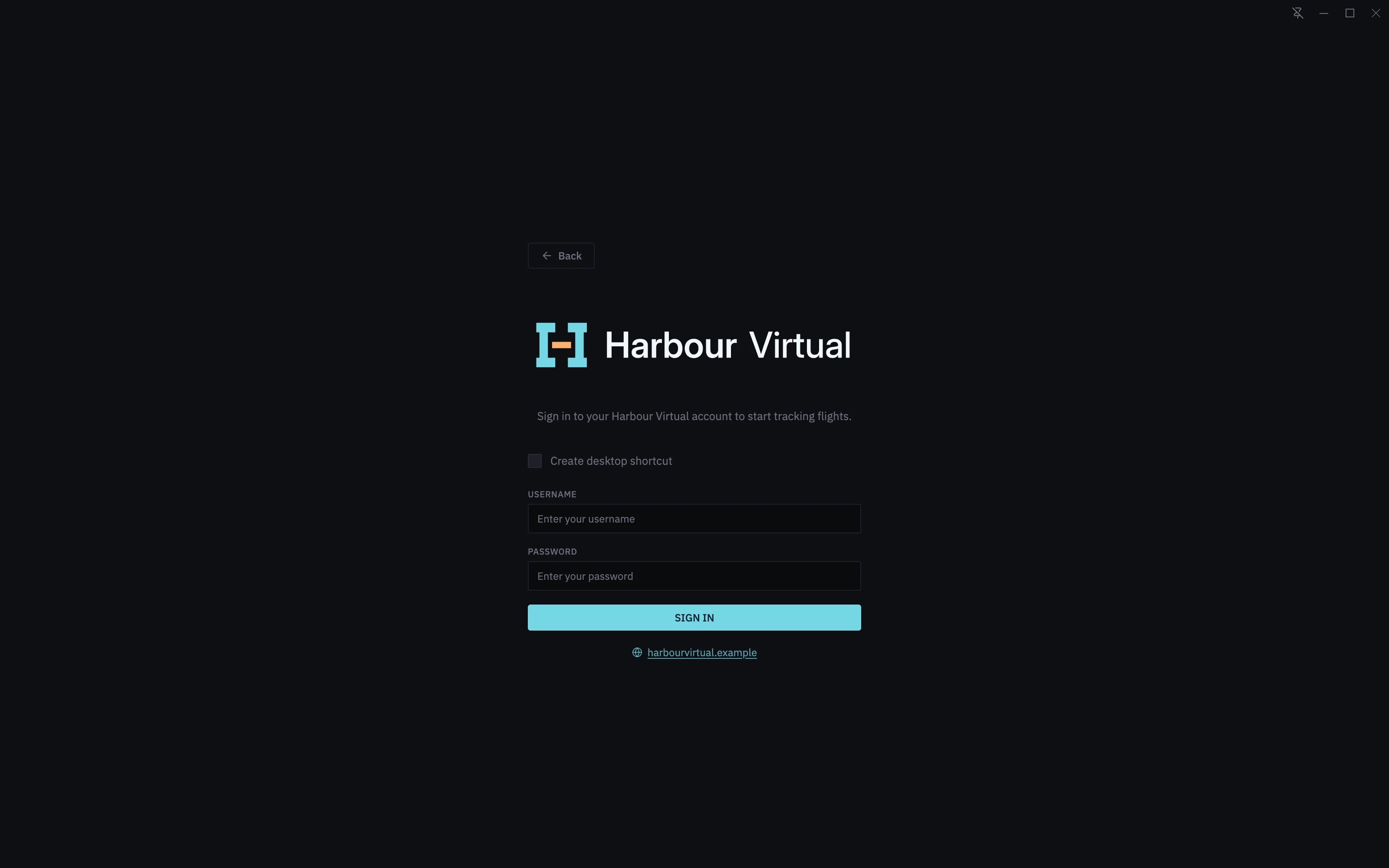
Sign in with a username and password
- Pick your airline on the Virtual Airlines page (see Choosing an airline).
- Enter your Username and Password for your airline’s website.
- Click Sign In.
Sign in through your browser
- Pick your airline, then click Sign in with and your airline’s name.
- Your browser opens your airline’s sign-in page. Sign in there and approve Stratos if it asks.
- The browser hands you back to Stratos, which carries on by itself.
If the browser doesn’t come back
If the browser doesn’t hand you back, Stratos shows a Still waiting? panel.- Make sure you finished signing in in the browser window that opened. Some browsers ask whether to open Stratos: allow it.
- Click Try again to open a fresh sign-in page.
- Still nothing? Minimise Stratos, copy
stratos://testfrom the panel and paste it into your browser’s address bar. Stratos should jump to the front. - If it doesn’t, your computer isn’t sending sign-in links to Stratos. Uninstall Stratos, then install the latest version with Download Stratos (see Install Stratos).
The licence
The first time you sign in, and again when the licence changes, Stratos shows the Stratos licence in full. Tick I’ve read and understood the licence, and I agree to it. and click Continue. Decline and sign out signs you out of your airline and takes you back to the airline list. You can’t track flights until you accept. Stratos never shows the licence during a flight, or while a flight is waiting to be recovered. It waits until you’ve finished.After you sign in
Stratos then gets your airline’s plugins ready, showing Syncing plugins… and each plugin as it installs. When it says Ready, it opens the first plugin in your sidebar. If a plugin won’t install, you’ll see Sync failed or Some plugins failed to install. Click Retry, or Go back to sign out and return to the airline list. If your airline hasn’t added any plugins yet, Stratos shows Welcome to Stratos with a note for the airline’s staff.When Stratos asks you to sign in again
Your airline asked everyone to sign in again
Airlines can ask all their pilots to sign in again, for example after changing how sign-in works. A Sign in again window then opens over whatever you’re looking at.- It never interrupts a flight. If you’re flying, it opens once the flight ends.
- You can’t start a new flight until you sign in. Sign in with your username and password, or click Sign in with your airline to use the browser. If the browser doesn’t come back, click Open the sign-in page again.
- Sign out signs you out instead and opens your airline’s sign-in page.
Session Expired
If your airline stops accepting your sign-in, Stratos shows Session Expired. If you’re flying, Stratos pauses the flight first so no position reports are lost.- Re-authenticate opens your airline’s sign-in page. Once you’re signed in, the paused flight carries on.
- Sign out signs you out of the airline.