

At a glance
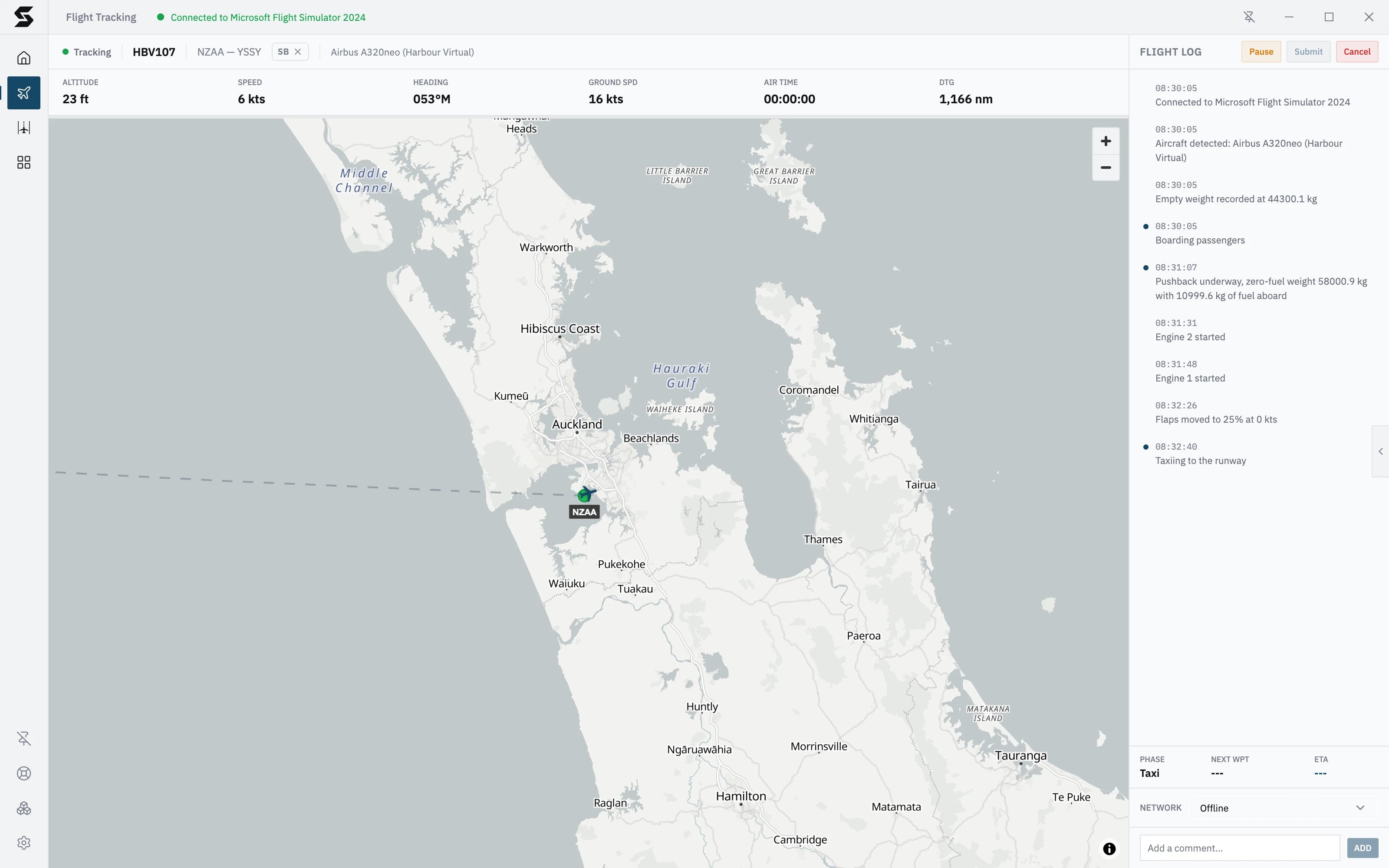
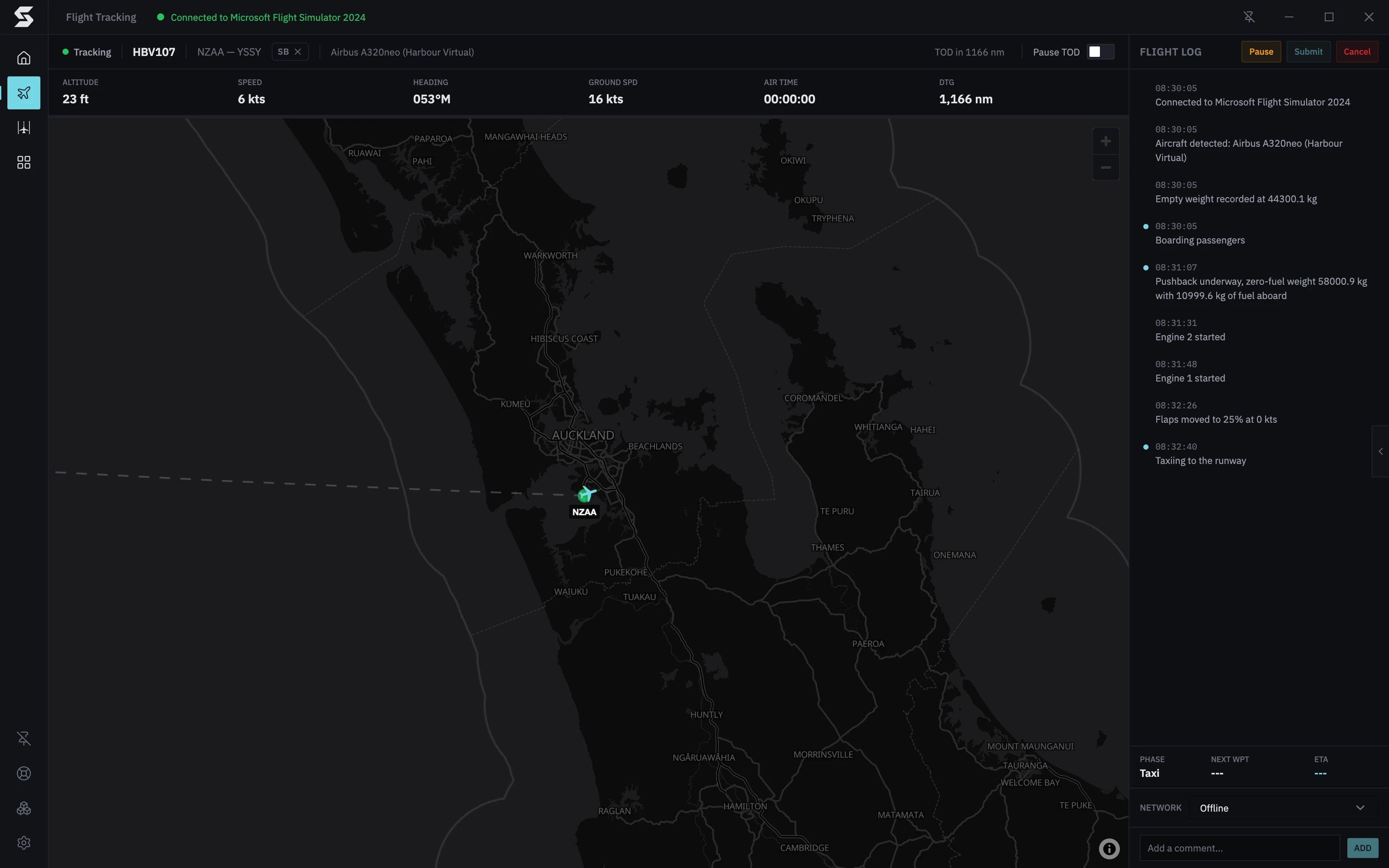
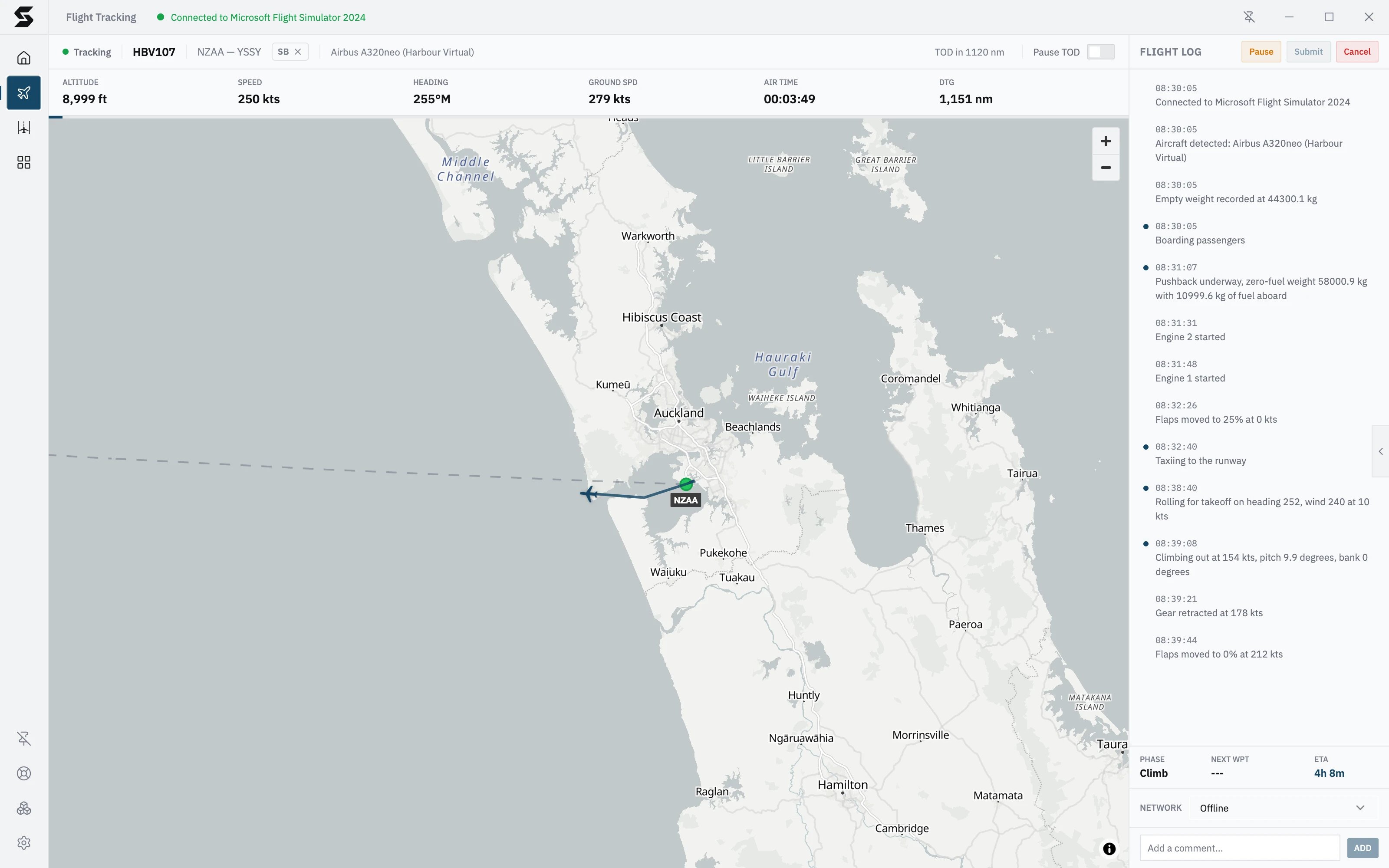
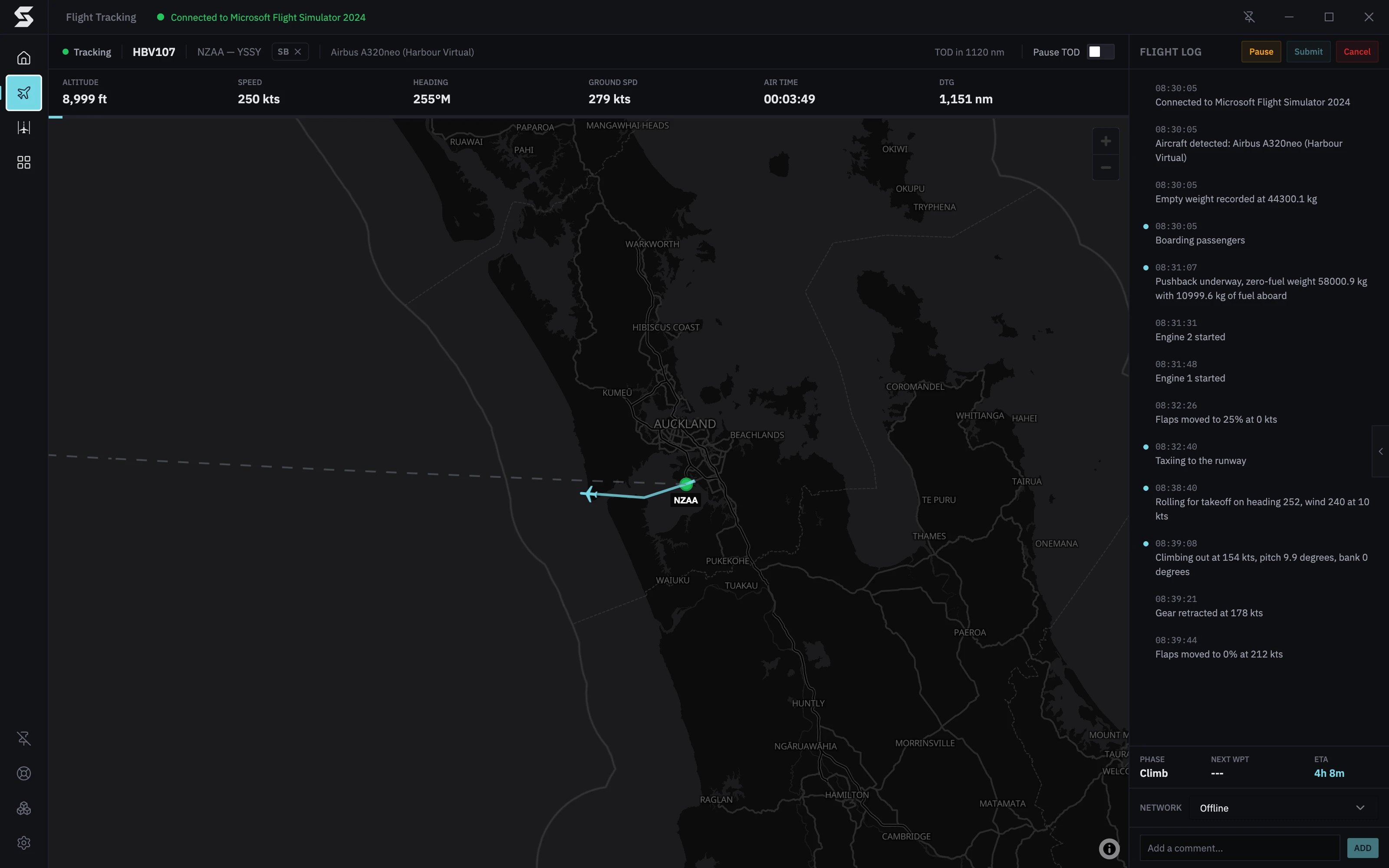
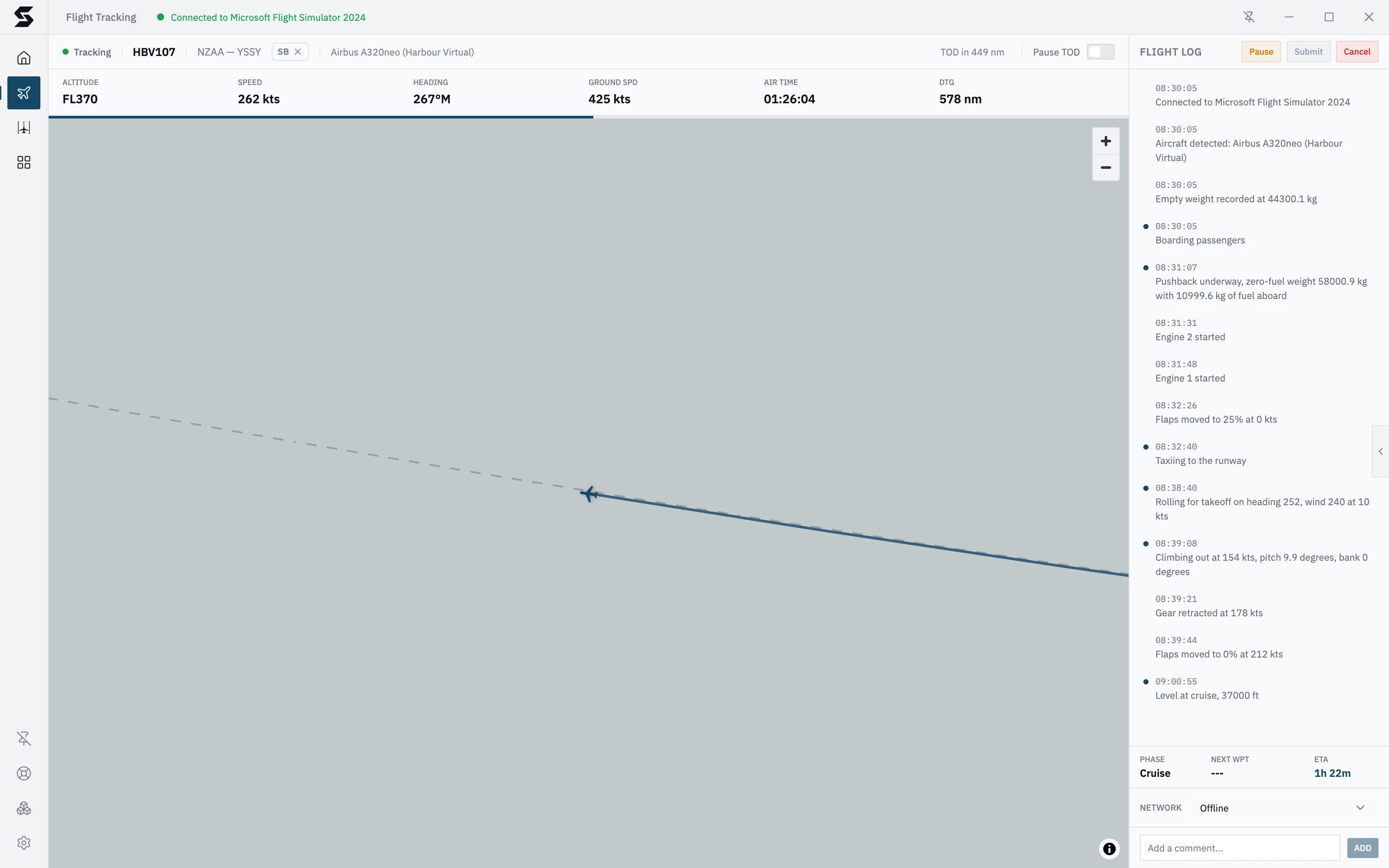
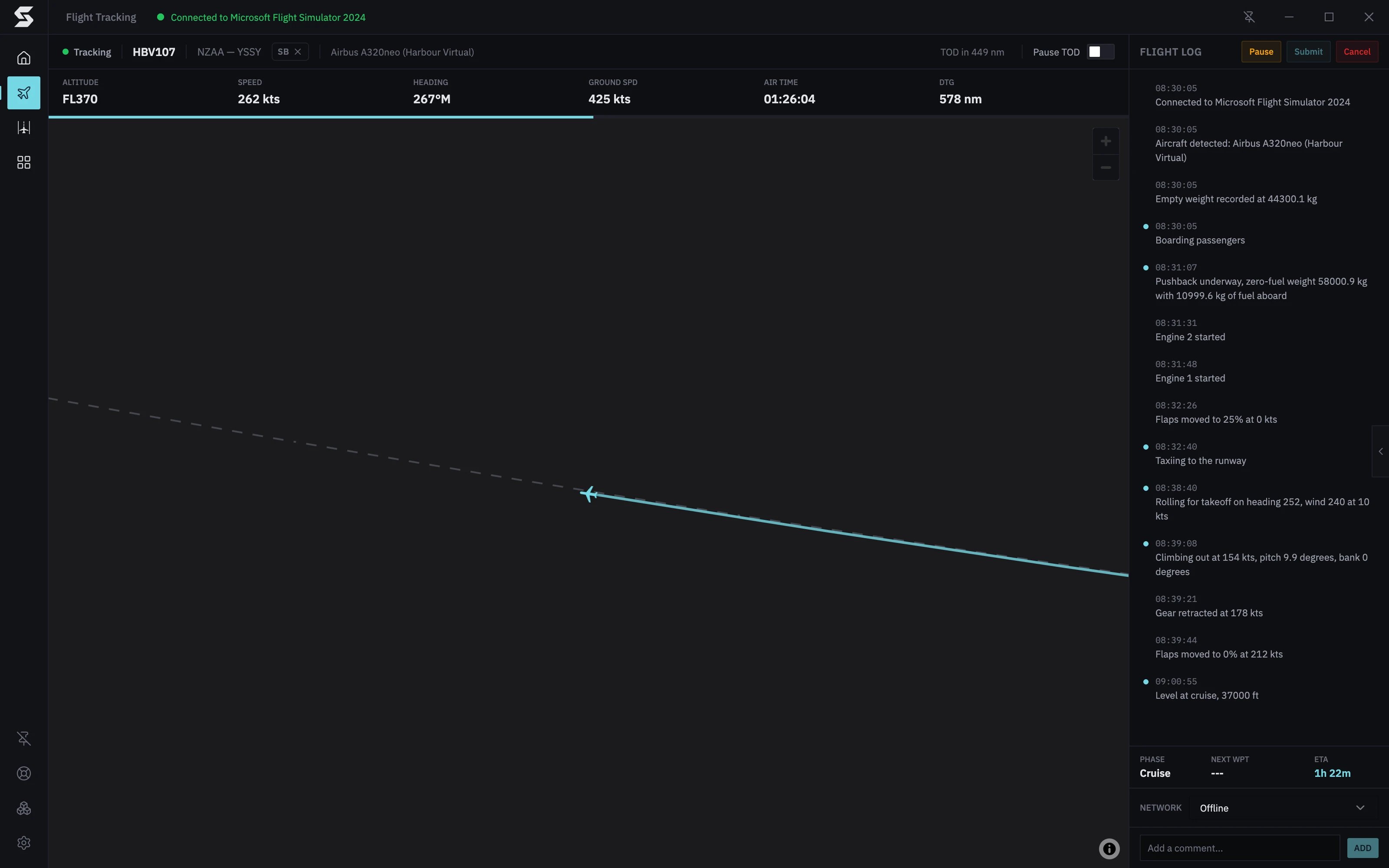
- The header shows whether you’re Tracking or Paused, your flight and aircraft, and the SB badge for SimBrief.
- The stats bar shows altitude, speed, heading, ground speed, flight time and distance to go.
- The flight log records your flight as it happens. Add your own comments at the bottom; they go to your airline with the flight.
- Switch on Pause TOD and Stratos pauses the simulator at your top of descent. See Pause at TOD.
The header
The strip across the top shows, from left to right:- Tracking with a green dot, or Paused with an orange one.
- Your callsign, then the departure and arrival airports.
- The SB badge, if you’ve added a SimBrief username. See SimBrief.
- The aircraft the simulator reports.
- TOD in and the distance, with the Pause TOD switch. See Pause at TOD.
The stats bar
The map
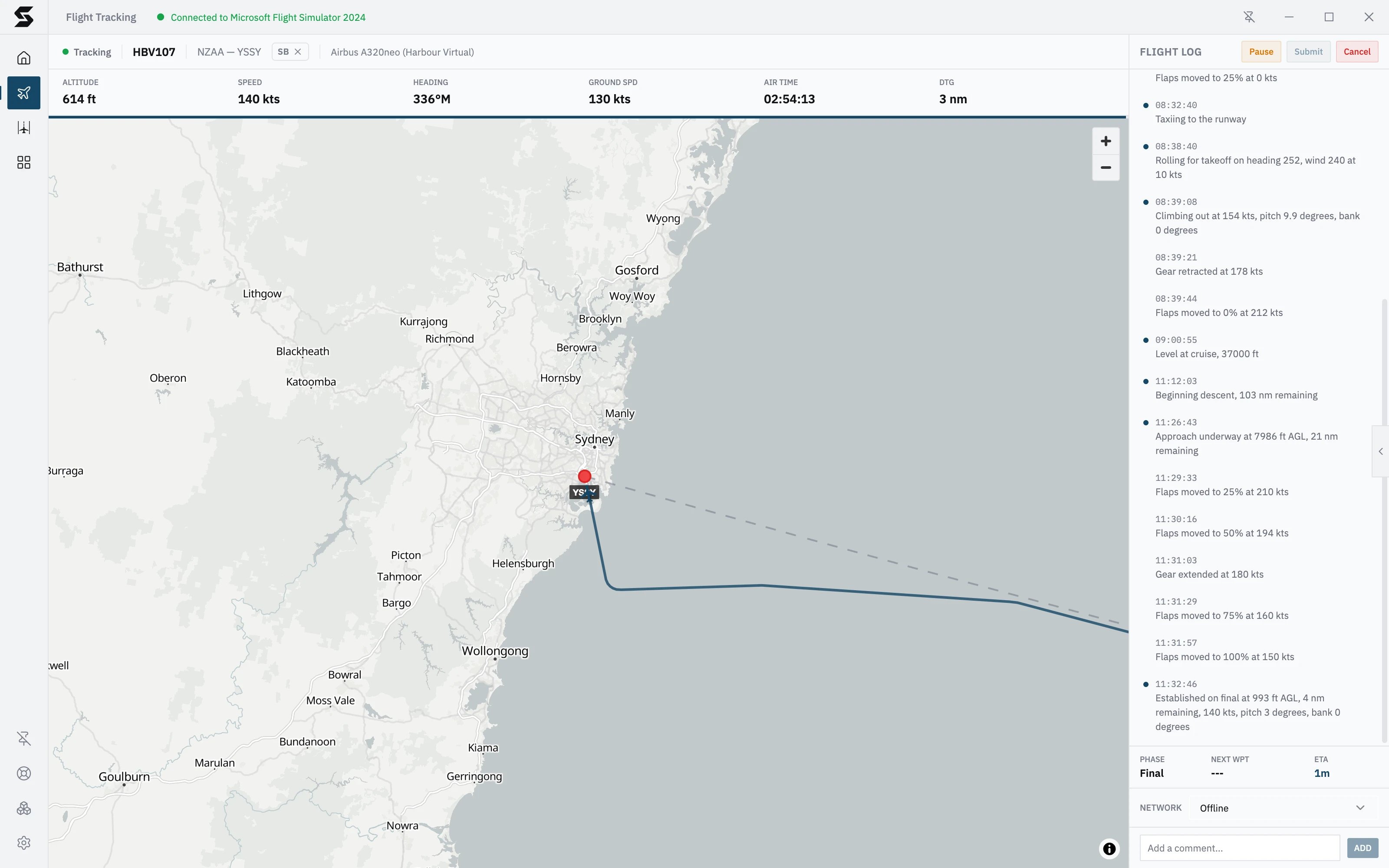
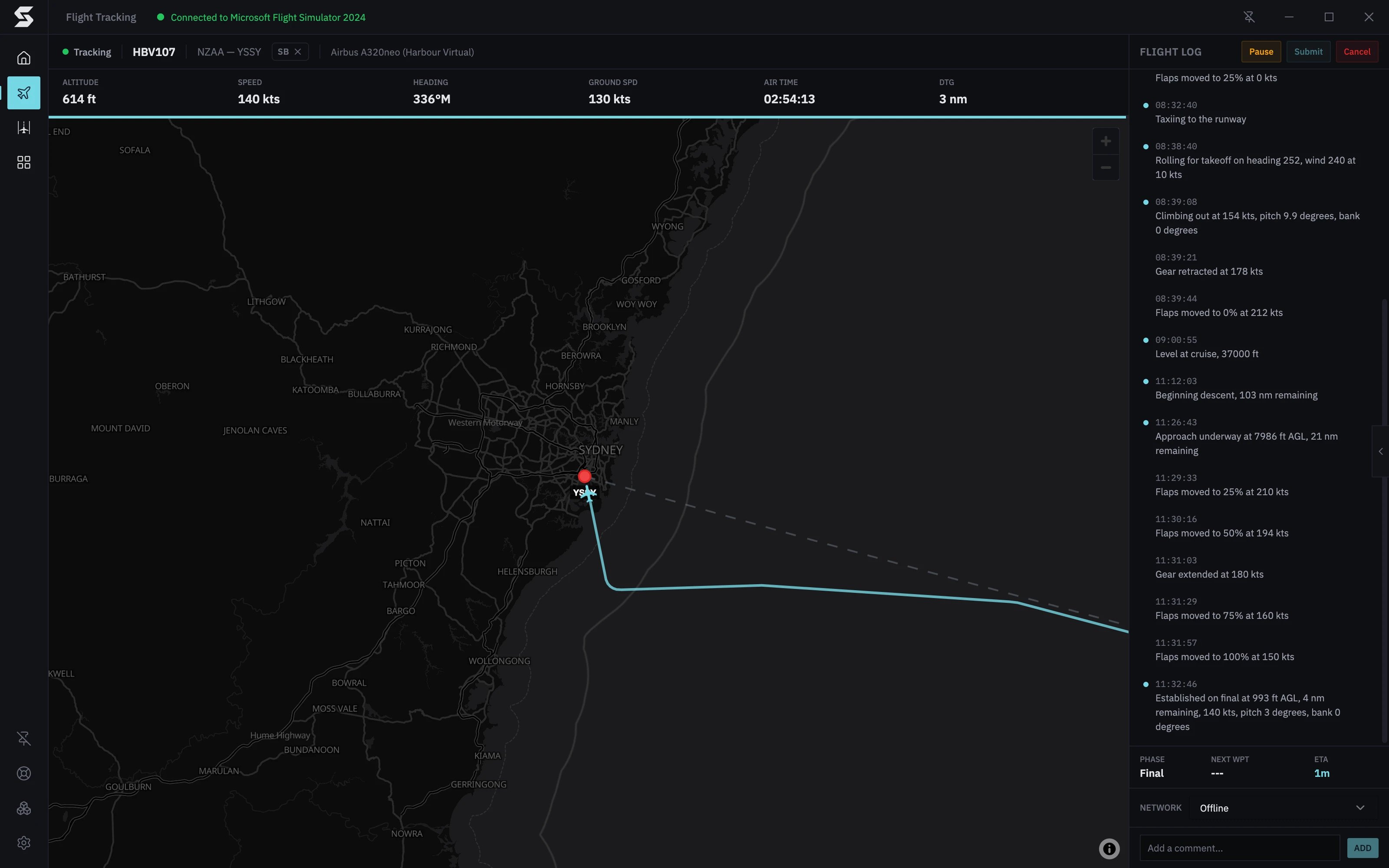
The map follows your aircraft. Drag it to look around, and press Center on Aircraft to follow again.- Your aircraft points the way you’re heading. The line behind it is the path you’ve flown, in your airline’s colour.
- The route. With a SimBrief plan, your planned route: solid green where you’ve flown it, dashed grey ahead, with a dot for each waypoint. Without one, a dashed great-circle line between the airports.
- Airports. A green dot for departure and a red dot for arrival, each labelled. Hover over one for its details.
- Waypoints. Hover over a waypoint for its position, the waypoints either side, and how far it is from each end. Top of climb and top of descent from your SimBrief plan show as green dots.
- The top of descent ring. With Pause TOD on, a dashed circle around the arrival airport marks where Stratos will pause.
- The progress bar along the top of the map fills as you cover the planned distance.
The booking panel
The tab on the right edge of the map opens a panel with two tabs:- Booking: the flight as booked. Callsign, Flight No., Airline, Aircraft, Aircraft ICAO, Departure, Arrival, Distance, Est. Time, Route and Cruise FL.
- METAR: a place for departure and arrival weather. It shows METAR data not yet available for now.
The flight log
The Flight Log on the right records your flight as it happens: phase changes, engines starting and stopping, flaps and gear, warnings and anything else your airline has asked Stratos to note. Each entry has the local time. Phase changes have a coloured dot, warnings a red one, and your comments are blue. Under the log, a summary row shows:- Phase: the flight phase Stratos has detected. See Flight phases.
- Next WPT: the next waypoint on your SimBrief route and its distance. It shows
---without a plan. - ETA: time to the arrival airport at your current ground speed. It shows
---on the ground.
Add a comment
Type into Add a comment… at the bottom of the log and press Add (or Enter). Your comment appears in the log in blue, and goes to your airline with the rest of the flight log when you submit.- Edit a comment: click it, change the text, and press Enter. Escape leaves it as it was.
- Delete a comment: hover over it and click the x. Undo on the message that appears brings it back.