

At a glance
- Six sections: General, Simulator, Notifications, Account and devices, Plugins and About and updates.
- Set your SimBrief username in General so the Landing Analyser can score fuel and check your speed at 50 ft.
- Sign out is in Account and devices, and at the foot of the section list.
- Reset settings in About and updates puts Stratos’s own settings back without signing you out.
Common tasks
Switch to dark mode or make text bigger
Switch to dark mode or make text bigger
Go to General → Appearance. Pick Light or Dark under Theme (or System to follow your computer), and Comfortable or Large under Text size.
Show kilograms, metres or kilometres
Show kilograms, metres or kilometres
Go to General → Units and data and change Weight, Altitude or Distance. This changes what you read in Stratos, including the flight log. The figures sent to your airline keep their standard units.
Add your SimBrief username
Add your SimBrief username
Go to General → Units and data and type it into SimBrief username. Plugins use your latest SimBrief plan for Vref, planned fuel and runway data, and the tracking map draws your route from it.
Connect to a simulator on another computer
Connect to a simulator on another computer
Go to Simulator, turn on Custom SimConnect address or Custom X-Plane address, and enter the other computer’s IP address and port. Remote simulator walks through both computers.
Make Stratos quit when I close the window
Make Stratos quit when I close the window
Go to General → Window and turn off Minimise to tray.
Sign out or change airline
Sign out or change airline
Go to Account and devices and click Sign out on your airline’s card, then confirm. To fly for a different airline, click Back on the sign-in page and pick it from the airline list. You can’t sign out while a flight is being tracked.
Pause the simulator at top of descent
Pause the simulator at top of descent
It isn’t in Settings. Switch on Pause TOD in the header of the tracking screen during a flight. See Pause at TOD.
Find the log files for support
Find the log files for support
Go to About and updates → Troubleshooting and click Logs. The folder opens with a log file for each day.
General
How Stratos looks and behaves on this computer, and the units it shows.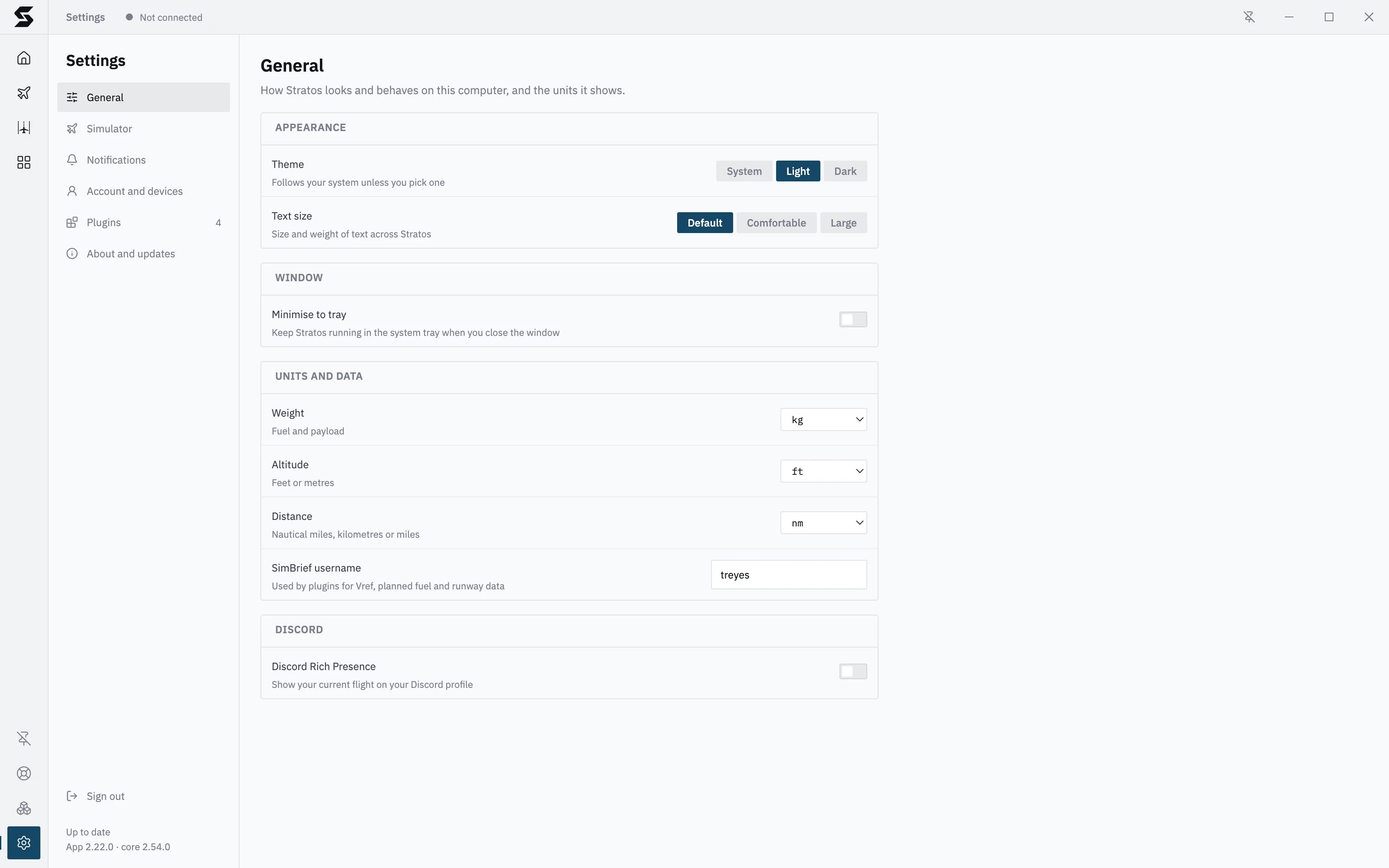
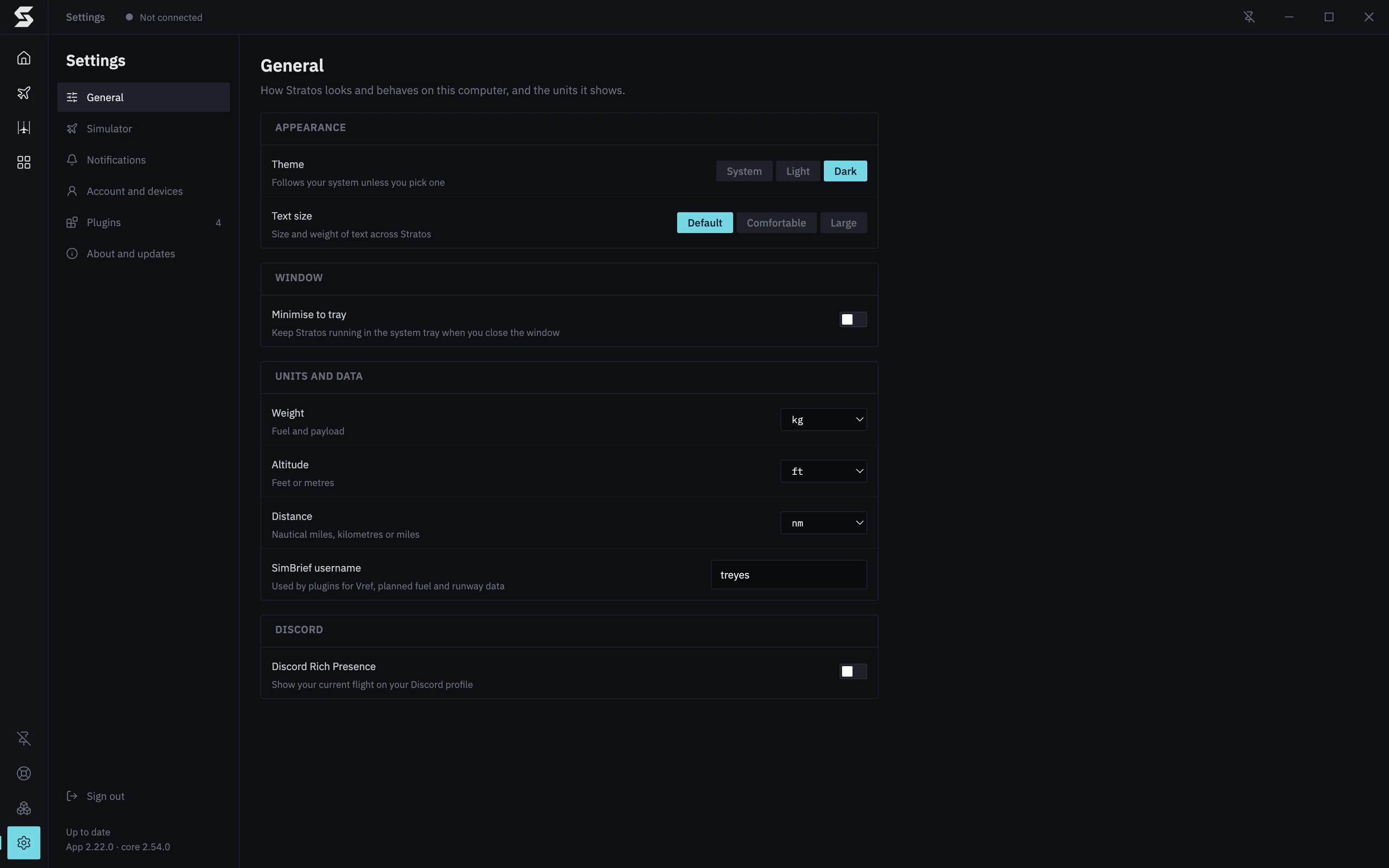
The units change what you read in Stratos, including the flight log messages. The figures Stratos sends to your airline keep their standard units, whatever you pick.
Simulator
Which simulator Stratos tracks, and where to find it. Tracking provider has three choices:- Automatic (the default) finds whichever simulator is running and connects to it.
- SimConnect only looks for Microsoft Flight Simulator 2020 or 2024, Prepar3D or FSX.
- X-Plane only looks for X-Plane 11 or 12.
Notifications
How Stratos gets your attention during a flight.Account and devices
Who you’re signed in as, and what’s linked to this Stratos. Airline shows your airline, your name and pilot ID, and Sign out. Signing out asks you to confirm, then takes you to your airline’s sign-in page; you’ll need to sign in again before your next flight. While a flight is being tracked, Stratos tells you to stop tracking first. Mobile app appears once the Stratos mobile app is available to you. Link mobile app shows a QR code to scan with the app. The code expires after 5 minutes and works once; when the app has linked, the dialog says Device linked.Plugins
Every plugin installed in Stratos, with an update button and your own settings for each. The number beside Plugins in the section list is how many you have. The list on the left shows each plugin with:- Airline (added by your airline) or You (installed by you from the catalogue).
- A warning sign when it Failed to load, and a download arrow when an update is available. Update all at the top updates them all.
- Its version, who added it, and Get help (for Skyvex Software’s own plugins) or Contact the developer (for anyone else’s). Both open a support ticket with the plugin’s log attached. See Getting help.
- Update when there’s a newer version, then Downloading, Installing and Restart to activate.
- An uninstall button, for plugins you installed. Plugins your airline added can only be removed by your airline.
- Your settings: what you can change for that plugin. Settings your airline controls aren’t shown here.
- Details: the Plugin ID, Author, Homepage, and Required by when your airline needs it.
About and updates
Updates, versions and troubleshooting. Updates says whether Stratos is Up to date, has an Update available, or is Downloading one (with a progress bar). Check for updates checks now, and Install and restart installs a downloaded update. It works during a flight too: Stratos restarts and offers to recover the flight when it opens again. The top bar’s Update available button stays hidden until the flight ends. See Updating Stratos. When a new Stratos core needs a newer Stratos app, this says so, with Download Stratos to get the installer. Versions shows the Stratos app and Stratos core versions. About Stratos opens the full version details and links. Support may ask for these numbers. Troubleshooting has two buttons:- Logs opens the folder with Stratos’s log files, one per day. Attach the right day’s file when support asks for it.
- Reset (under Reset settings) puts theme, text size, units, notifications and simulator settings back to their defaults. You stay signed in to your airline, and your flights and plugins aren’t affected.