

At a glance
- Click Support in the sidebar, then New Ticket.
- Your airline helps with your account, PIREPs, flights, ranks and bookings. Stratos app support helps with the app itself.
- Every ticket, to your airline or to Stratos app support, sends a copy of Stratos’s database from this computer. Only Skyvex Software sees it, so we can see what happened.
- For a plugin, use Get help or Contact the developer on the plugin. Its log goes with your message.
Who to ask
Open a ticket
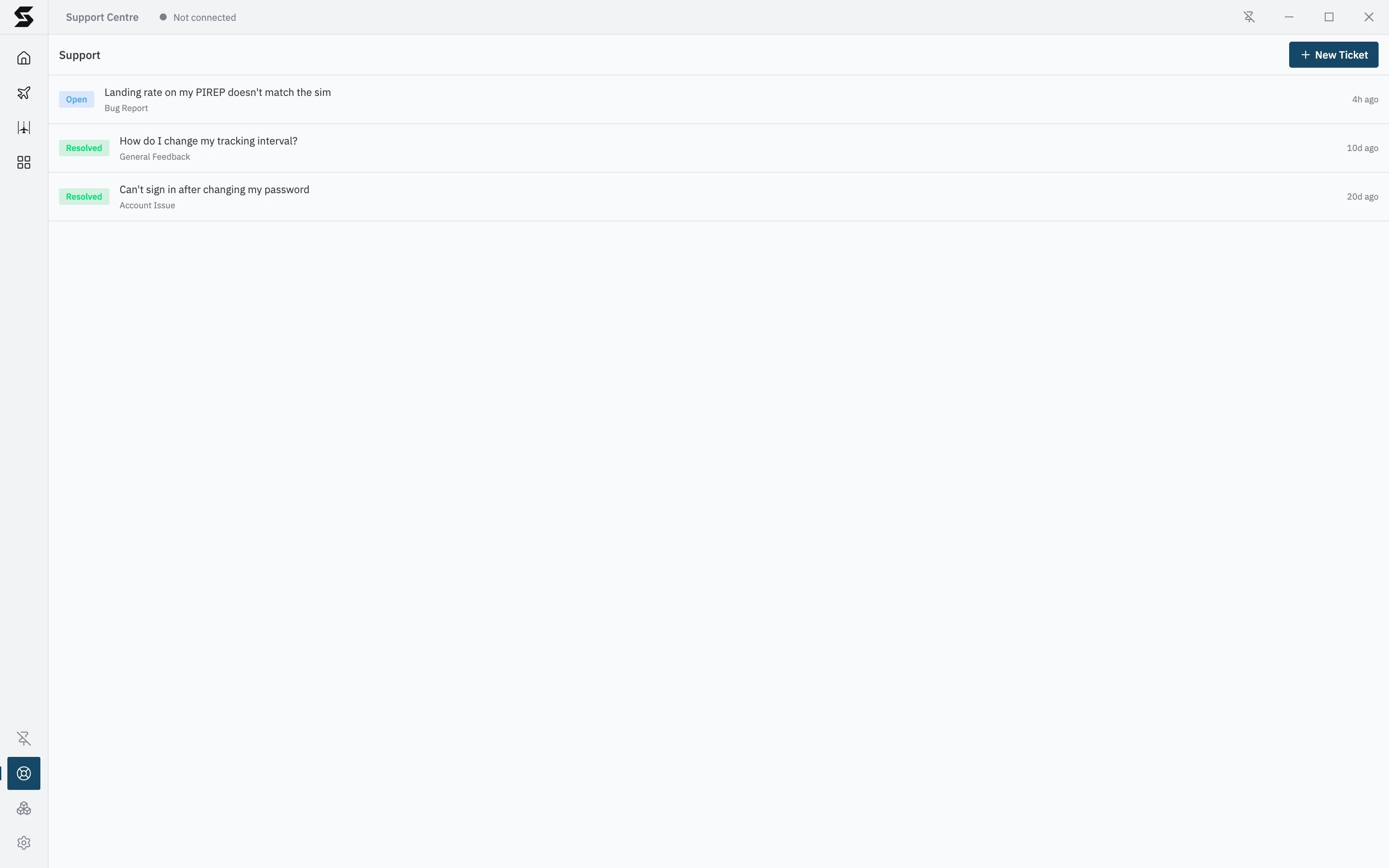
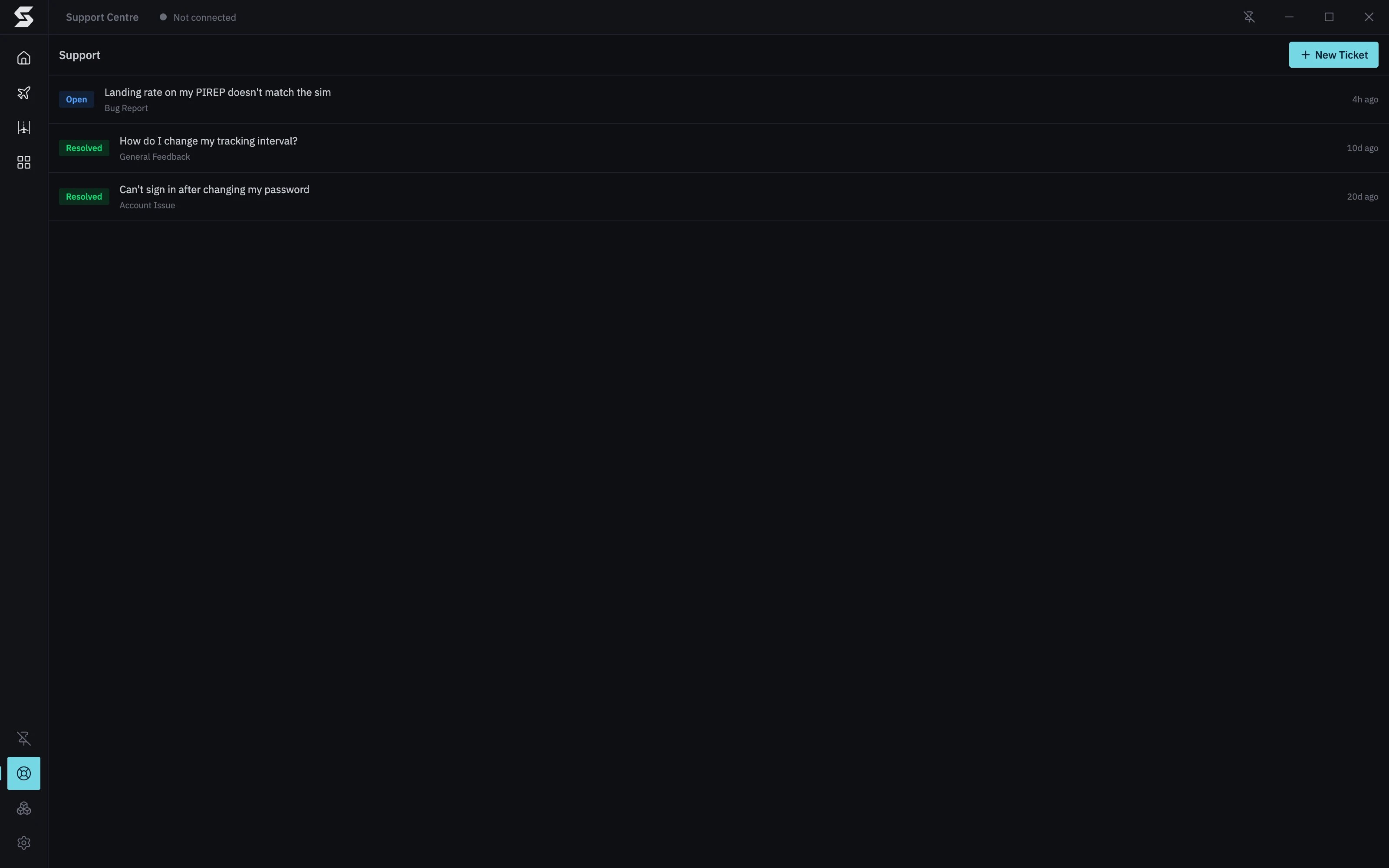
- Click Support in the sidebar. The Support Centre lists your tickets.
- Click New Ticket.
- Under Open a new ticket, pick Your airline or Stratos app support, then click Continue.
- Write a Message: what you were doing, what happened and what you expected. A Subject is optional; without one, your first line becomes the subject.
- Click Send, or press Ctrl+Enter (Cmd+Enter on a Mac).
- If it answers tickets in Stratos, pick Your airline or Stratos app support, then write your message.
- If it has its own help desk, picking Your airline shows Open the help desk, which opens it in your browser. Stratos app support goes on to the message as usual.
- If it does neither, the ticket goes straight to Stratos app support, with a reminder to contact your airline directly for anything about your account, PIREPs, flights, ranks or bookings.
What’s sent with it
- To Stratos app support: a copy of Stratos’s database from this computer goes with every ticket, so we can see your recent flights and what Stratos recorded. For Get help on one of our plugins, that plugin’s log goes too.
- To your airline: your message and any files you attach. A copy of Stratos’s database goes too, but only Skyvex Software can see it, never your airline. It’s there in case your airline brings us in.
- To a plugin’s developer: your message and the plugin’s log. See Contact a plugin’s developer.
Replies and solving a ticket
Replies appear in the ticket as they arrive, and a dot on Support in the sidebar tells you there’s a reply waiting. Each ticket shows its status:- Reply: type in Type your reply… at the bottom and send it.
- Attach: add screenshots or files to a reply with the paperclip, by pasting, or by dragging them in (up to 10 files, 10 MB each). Files the person helping you sends show in the conversation.
- React: hover over a message and click Add reaction to add an emoji.
- Mark as Solved: when you’ve sorted it out yourself, click Mark as Solved at the top and confirm. If it comes back, reply and the ticket reopens.
Contact a plugin’s developer
Plugins made by other developers are supported by those developers, not by Skyvex Software or your airline.- Find the plugin in Settings → Plugins, or its card in the Plugins catalogue.
- Click Contact the developer.
- Write your message and click Send.
Share an idea or report a bug on the roadmap
The Stratos roadmap is where ideas and bug reports are collected and voted on, and where you can see what’s planned, in progress and shipped.- Open the roadmap in your browser.
- Sign in with a Skyvex Software account. Create one free if you don’t have one. It’s separate from your airline sign-in.
- Click Share an idea, pick an idea or a bug, and describe it.