

At a glance
- Open the catalogue with Plugins in the sidebar. Install, update or uninstall from there.
- Plugins your airline added say Required by VA and can only be removed by your airline.
- Change a plugin’s settings in Settings → Plugins, under Your settings.
- Drag the icons in the sidebar to put them in the order you like.
Find a plugin
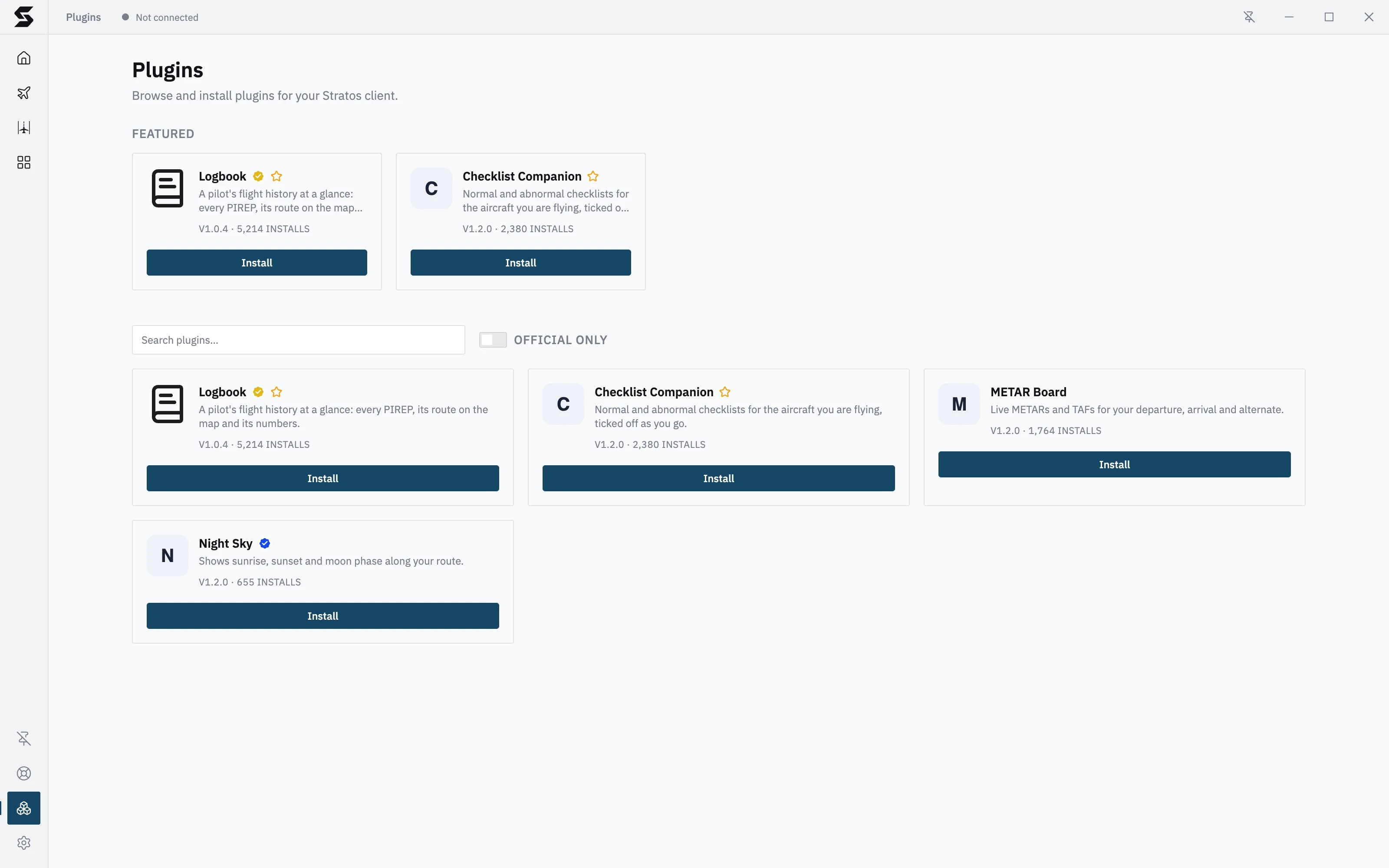
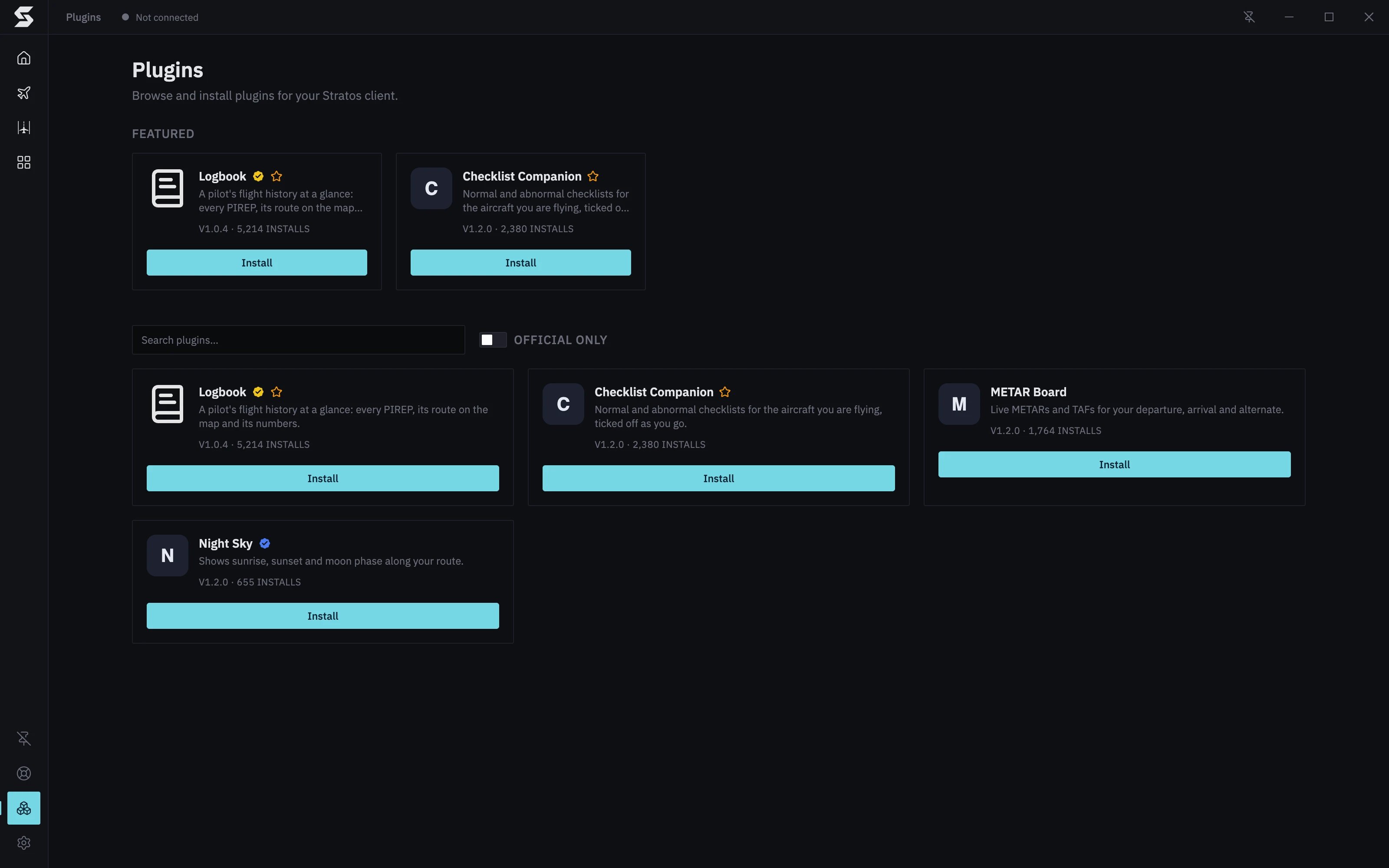
Click Plugins in the sidebar to open the catalogue.- Featured plugins sit at the top.
- Type in Search plugins… to search names and descriptions.
- Turn on Official only to see only Skyvex Software’s own plugins.
- Gold tick: an official plugin, made and maintained by Skyvex Software.
- Blue tick: a verified developer.
Install a plugin
- Click Install on the plugin.
- Check the version and click Install in Install name?.
Update a plugin
When a newer version is out, the plugin’s card shows an Update badge. Click Update, check the versions, then click Update again to confirm. The new version is switched on without a restart. You can also update from Settings → Plugins: a download arrow marks each plugin with an update, Update all updates every one, and a plugin’s own page has an Update button. A plugin updated there may say Restart to activate; it switches over the next time Stratos starts. Plugins, including the ones you installed, update on their own; Update just does it straight away.Uninstall a plugin
- In the catalogue, hover over Installed on the plugin’s card. It changes to Uninstall. Click it.
- Click Uninstall in Uninstall name?.
Change a plugin’s settings
- Open Settings → Plugins (or click the gear icon, then Plugins).
- Pick the plugin from the list on the left.
- Change what you need under Your settings. Changes save straight away.
Reorder the sidebar
Drag a plugin’s icon up or down the sidebar and drop it where you want it. The order is saved for each airline you fly for. With the keyboard: move to the icon with Tab, press Space to pick it up, use the arrow keys to move it, then press Space or Enter to drop it (Escape cancels). The first time you sign in, the icons follow the order your airline set.When a plugin won’t load
If a plugin can’t start, its page says Failed to Load Plugin (or Plugin Error if it stopped while showing), with the reason. In Settings → Plugins it has a warning sign and the same reason on its page.- Click Retry.
- Check for an update: open Settings → Plugins and look for Update, or check About and updates.
- Restart Stratos.
- Still broken? Click Get help (for Skyvex Software’s plugins) or Contact the developer (for anyone else’s) on the plugin’s page in Settings → Plugins, or on its card in the catalogue. The plugin’s log goes with your message. See Getting help.