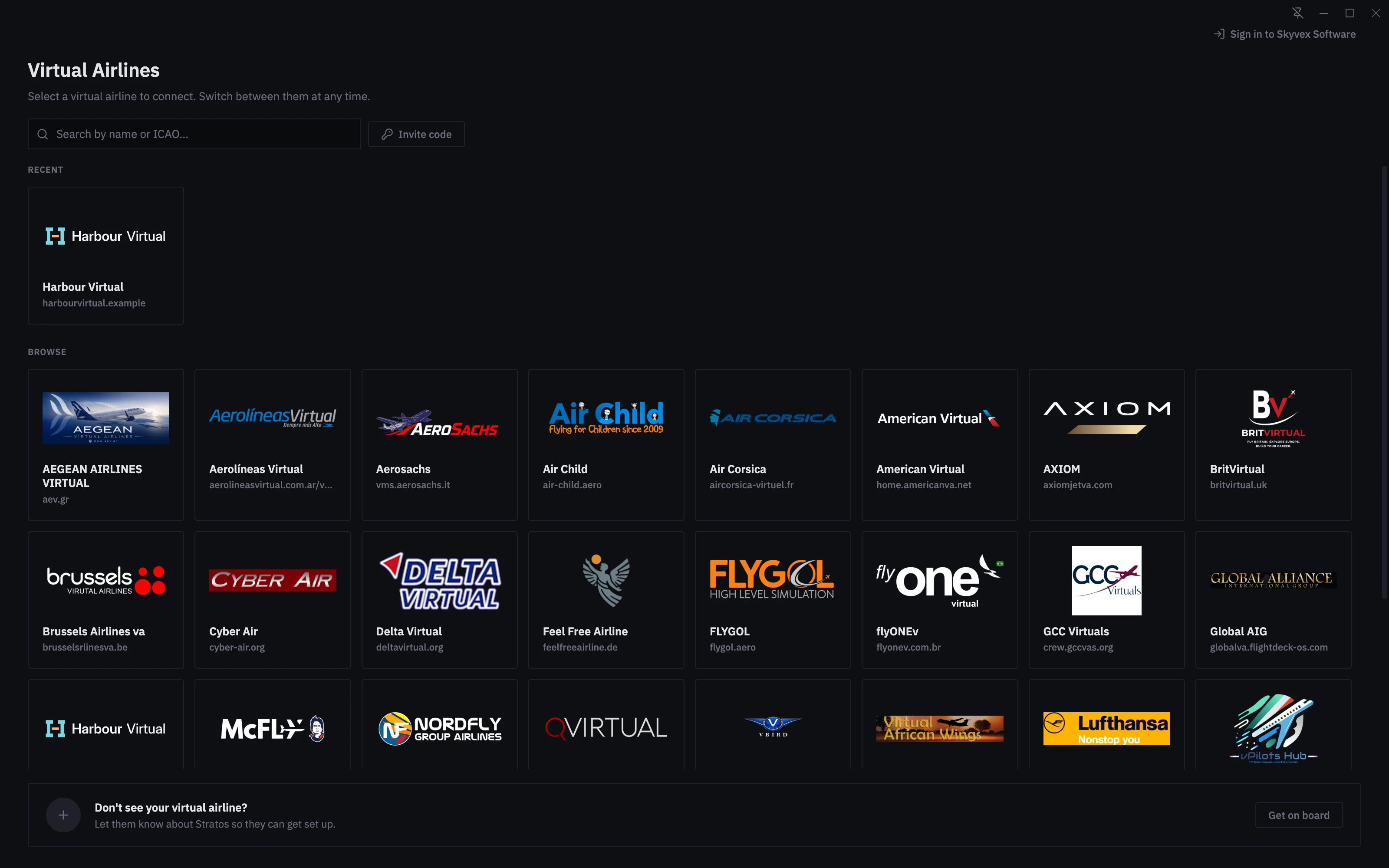
Stratos tracks flights for one virtual airline at a time. The Virtual Airlines page is where you pick it: browse the directory, search it, or enter an invite code your airline gave you. Stratos opens on this page until you’ve signed in to an airline.

Pick your airline

  1. Open Stratos. The Virtual Airlines page lists the airlines on Stratos under Browse.
  2. Click your airline’s card.
  3. Sign in with your airline account. See Signing in.
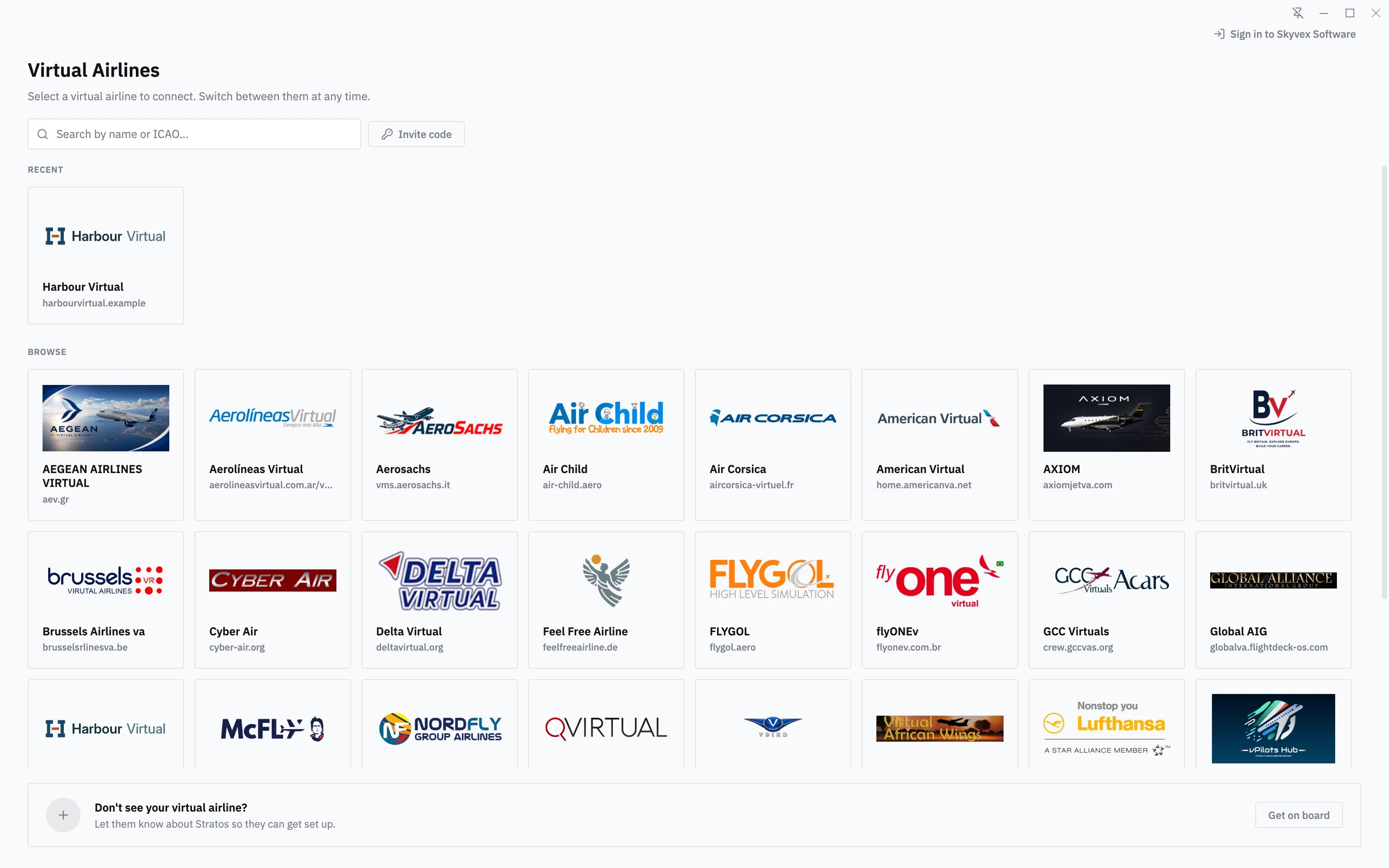
Virtual Airlines: Harbour Virtual under Recent, and every airline on Stratos to browse or searchVirtual Airlines: Harbour Virtual under Recent, and every airline on Stratos to browse or search
The list loads more airlines as you scroll. To find one quickly, type part of its name or its ICAO code in the search box.

Join with an invite code

Some airlines aren’t listed in the directory. They give their pilots an invite code instead.
  1. On the Virtual Airlines page, click Invite code.
  2. Type or paste the code and click Connect.
  3. Sign in on the airline’s page that opens.
If you see Airline Not Found, the code is wrong or the airline is no longer on Stratos. Check the code with your airline’s staff.

Recent airlines

Every airline you open is saved under Recent at the top of the page, including airlines you joined with an invite code, so you only enter a code once. To take one off the list, hover over its card and click the × in the corner. An airline that has left Stratos drops off the list by itself.

Open an airline straight from your desktop

On an airline’s sign-in page, tick Create desktop shortcut before you sign in. The shortcut opens Stratos straight to that airline. If the airline later leaves Stratos, the shortcut stops working; delete it.

Switch to another airline

You’re signed in to one airline at a time. To fly for another:
  1. Open Settings → Account and devices and click Sign out on your airline’s card. (Sign out is also at the bottom of the Settings section list.)
  2. Confirm. Stratos opens your old airline’s sign-in page.
  3. Click Back to return to the Virtual Airlines page, and pick the other airline.
You can’t sign out while a flight is being tracked. Finish or cancel the flight first.

Your airline isn’t listed

If your airline isn’t in the directory and you don’t have an invite code, ask your airline’s staff whether they use Stratos. Get on board at the bottom of the page opens skyvexsoftware.com, so you can point them to it.

Signing in to Skyvex Software

Sign in to Skyvex Software at the top right of the Virtual Airlines page is optional. You don’t need it to fly: your airline account is all Stratos needs to track flights. A Skyvex Software account is separate from your airline sign-in and is used for things outside your airline, such as sending feedback on Stratos. Click Sign in, finish in your browser, and Stratos brings you back to the airline list. Back to airlines skips it.

For VA owners

Your invite code is on Settings → General in Console, and the Stratos airline directory switch on Settings → Listing puts your airline in the Browse list. New code stops the old invite code working; pilots who have already joined stay joined. See Invite your pilots.