> ## Documentation Index
> Fetch the complete documentation index at: https://docs.skyvexsoftware.com/llms.txt
> Use this file to discover all available pages before exploring further.
# Remote Simulator Setup
> Connect Stratos to a flight simulator running on a different PC over your local network.
## When You Need This
Stratos runs on the same PC as your simulator by default — no setup required. You only need this guide if your sim and Stratos are on **different machines on the same home network**, for example:
* A dedicated simulator PC with Stratos on a laptop or streaming box
* A cockpit rig where only the visuals run on the sim PC
* Running Stratos on a Mac while the sim runs on Windows
If both apps live on the same PC, close this page — you don't need to touch anything.
Both machines must be on the **same local network** (same Wi-Fi or same router). Stratos can't reach your sim over the internet.
## Step 1 — Find the Sim PC's IP Address
On the PC running the simulator, open **Command Prompt** and run:
```powershell theme={null}
ipconfig
```
Look for the **IPv4 Address** line — it'll look something like `192.168.1.5`. Write it down.
## Step 2 — Let Stratos In
### MSFS 2020, MSFS 2024, P3D, FSX
These sims read a small settings file called `SimConnect.xml` when they start up. On most installs **the file already exists** — you just need to change one line in it. Open the file at the path below for your sim:
```
%LOCALAPPDATA%\Packages\Microsoft.Limitless_8wekyb3d8bbwe\LocalCache\SimConnect.xml
```
```
%APPDATA%\Microsoft Flight Simulator 2024\SimConnect.xml
```
```
%LOCALAPPDATA%\Packages\Microsoft.FlightSimulator_8wekyb3d8bbwe\LocalCache\SimConnect.xml
```
```
%APPDATA%\Microsoft Flight Simulator\SimConnect.xml
```
```
%APPDATA%\Lockheed Martin\Prepar3D v5\SimConnect.xml
```
```
%APPDATA%\Microsoft\FSX\SimConnect.xml
```
Paste the path into the File Explorer address bar — the `%APPDATA%` part expands automatically.
The file will have several `` blocks — one for each connection type. The only one you need to touch is the first one, labelled **`Static IP4 port`**. It'll look roughly like this:
```xml theme={null}
Static IP4 port
IPv4
global
500
64
41088
0.0.0.0
```
The one line that matters is **``**, usually sitting at the bottom of the block:
* If it says `127.0.0.1` → change it to `0.0.0.0`
* If the `` line is missing entirely → add `0.0.0.0` just before the closing `` tag
`0.0.0.0` lets the sim accept connections from other machines on your network. `127.0.0.1` means "same PC only". While you're there, note the `` value (usually `500`) — you'll need it in the next step. Leave every other block in the file alone.
Save the file, then **restart the simulator**. That's it on this side.
Some installs don't ship a `SimConnect.xml`. If that's you, create a new file at the path above and paste in this minimal template:
```xml theme={null}
SimConnect Server Configuration
SimConnect.xml
Static IP4 port
IPv4
global
500
64
41088
0.0.0.0
```
Save, then restart the sim.
### X-Plane 11 / 12
Nothing to change. X-Plane already accepts remote connections out of the box on port `49000`.
## Step 3 — Point Stratos at the Sim PC
On the machine running Stratos, open **Settings** (gear icon in the sidebar) and scroll to **Tracking Provider**. The control offers three modes — **Automatic**, **SimConnect**, and **X-Plane**:
* **Automatic** (the default) probes both SimConnect and X-Plane at their configured addresses and connects to whichever simulator is running, re-detecting between flights if you switch sims. It works with a remote sim too — the per-simulator IP/port you set below still apply.
* **SimConnect** / **X-Plane** force a single provider. Pick the one that matches your sim if you want to pin it (for example, a remote rig you don't want auto-switched away from).
Each provider has its own **Custom IP / Port** block. Expand the one for your sim and fill in the three controls highlighted below:
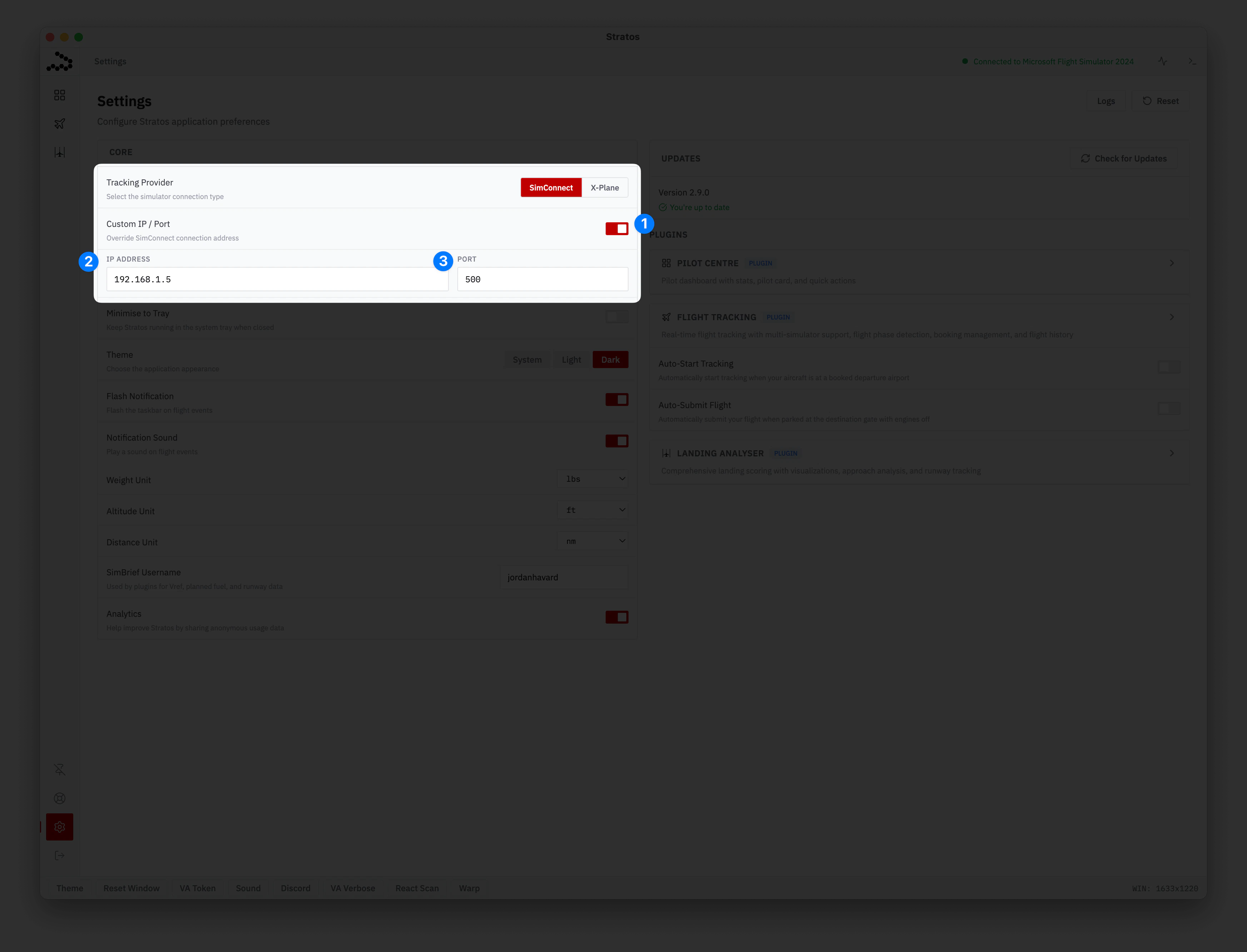 1. **Enable Custom IP / Port** — flip the switch on. The IP and port inputs appear underneath.
2. **IP Address** — enter the sim PC's IPv4 address from Step 1 (e.g. `192.168.1.5`).
3. **Port** — `500` for SimConnect, `49000` for X-Plane.
In Automatic mode you can set the address for both SimConnect and X-Plane independently. Stratos reconnects automatically — no save button, no restart. The connection indicator in the top bar turns green once it's through; it stays grey while disconnected.
## Troubleshooting
Work through these in order:
* Double-check the IP and port match exactly between the sim PC and Stratos
* Make sure the sim is actually running and you're in a flight (not sitting on the main menu — older sims only finish starting SimConnect once a flight is loaded)
* Did you restart the simulator after saving `SimConnect.xml`? The file is only read when the sim starts
* From the Stratos PC, open Command Prompt and run `ping 192.168.1.5` (swap in your sim PC's IP). No reply means the two PCs aren't talking to each other on the network — that's not a Stratos problem
Say yes, and make sure **Private networks** is ticked. If you clicked no by mistake, open **Windows Defender Firewall → Allow an app through the firewall** and tick the box next to your simulator.
If the firewall prompt never showed up and things still aren't working, try temporarily turning Windows Defender Firewall off to confirm it's the culprit. If that fixes it, turn the firewall back on and add an inbound rule for the SimConnect port (`500` by default).
Any free port works — Windows doesn't restrict low numbers like some other systems do, which is why `500` is fine as a default. `5111` and `7421` are other commonly-seen choices. Whatever you put in `` in `SimConnect.xml` is the same number you enter in Stratos Settings.
To check a port isn't already taken on the sim PC, open Command Prompt and run `netstat -ano | findstr :500` (swap in your port). If nothing shows up, the port is free.
* Some Wi-Fi routers isolate clients from each other. Look in your router admin page for a "Client Isolation" or "AP Isolation" setting and turn it off
* On the sim PC, make sure your Wi-Fi/Ethernet network is set to **Private**, not **Public** — Public networks block a lot of inbound traffic
* Open X-Plane's **Settings → Network** and confirm UDP data output is enabled on the port you entered in Stratos
* Some third-party plugins grab port `49000` for themselves. Try setting a different port in X-Plane (e.g. `49010`) and matching it in Stratos
## Going Back to Local
Open Settings, toggle **Custom IP / Port** off, and Stratos will reconnect to your local sim automatically. You can leave the `SimConnect.xml` file in place — it only activates when Stratos asks for a remote connection.
1. **Enable Custom IP / Port** — flip the switch on. The IP and port inputs appear underneath.
2. **IP Address** — enter the sim PC's IPv4 address from Step 1 (e.g. `192.168.1.5`).
3. **Port** — `500` for SimConnect, `49000` for X-Plane.
In Automatic mode you can set the address for both SimConnect and X-Plane independently. Stratos reconnects automatically — no save button, no restart. The connection indicator in the top bar turns green once it's through; it stays grey while disconnected.
## Troubleshooting
Work through these in order:
* Double-check the IP and port match exactly between the sim PC and Stratos
* Make sure the sim is actually running and you're in a flight (not sitting on the main menu — older sims only finish starting SimConnect once a flight is loaded)
* Did you restart the simulator after saving `SimConnect.xml`? The file is only read when the sim starts
* From the Stratos PC, open Command Prompt and run `ping 192.168.1.5` (swap in your sim PC's IP). No reply means the two PCs aren't talking to each other on the network — that's not a Stratos problem
Say yes, and make sure **Private networks** is ticked. If you clicked no by mistake, open **Windows Defender Firewall → Allow an app through the firewall** and tick the box next to your simulator.
If the firewall prompt never showed up and things still aren't working, try temporarily turning Windows Defender Firewall off to confirm it's the culprit. If that fixes it, turn the firewall back on and add an inbound rule for the SimConnect port (`500` by default).
Any free port works — Windows doesn't restrict low numbers like some other systems do, which is why `500` is fine as a default. `5111` and `7421` are other commonly-seen choices. Whatever you put in `` in `SimConnect.xml` is the same number you enter in Stratos Settings.
To check a port isn't already taken on the sim PC, open Command Prompt and run `netstat -ano | findstr :500` (swap in your port). If nothing shows up, the port is free.
* Some Wi-Fi routers isolate clients from each other. Look in your router admin page for a "Client Isolation" or "AP Isolation" setting and turn it off
* On the sim PC, make sure your Wi-Fi/Ethernet network is set to **Private**, not **Public** — Public networks block a lot of inbound traffic
* Open X-Plane's **Settings → Network** and confirm UDP data output is enabled on the port you entered in Stratos
* Some third-party plugins grab port `49000` for themselves. Try setting a different port in X-Plane (e.g. `49010`) and matching it in Stratos
## Going Back to Local
Open Settings, toggle **Custom IP / Port** off, and Stratos will reconnect to your local sim automatically. You can leave the `SimConnect.xml` file in place — it only activates when Stratos asks for a remote connection.